How to configure your payment gateway
Connect Stripe, PayPal, Mercado Pago or offline payments to your shop.
Updated April 6, 2022
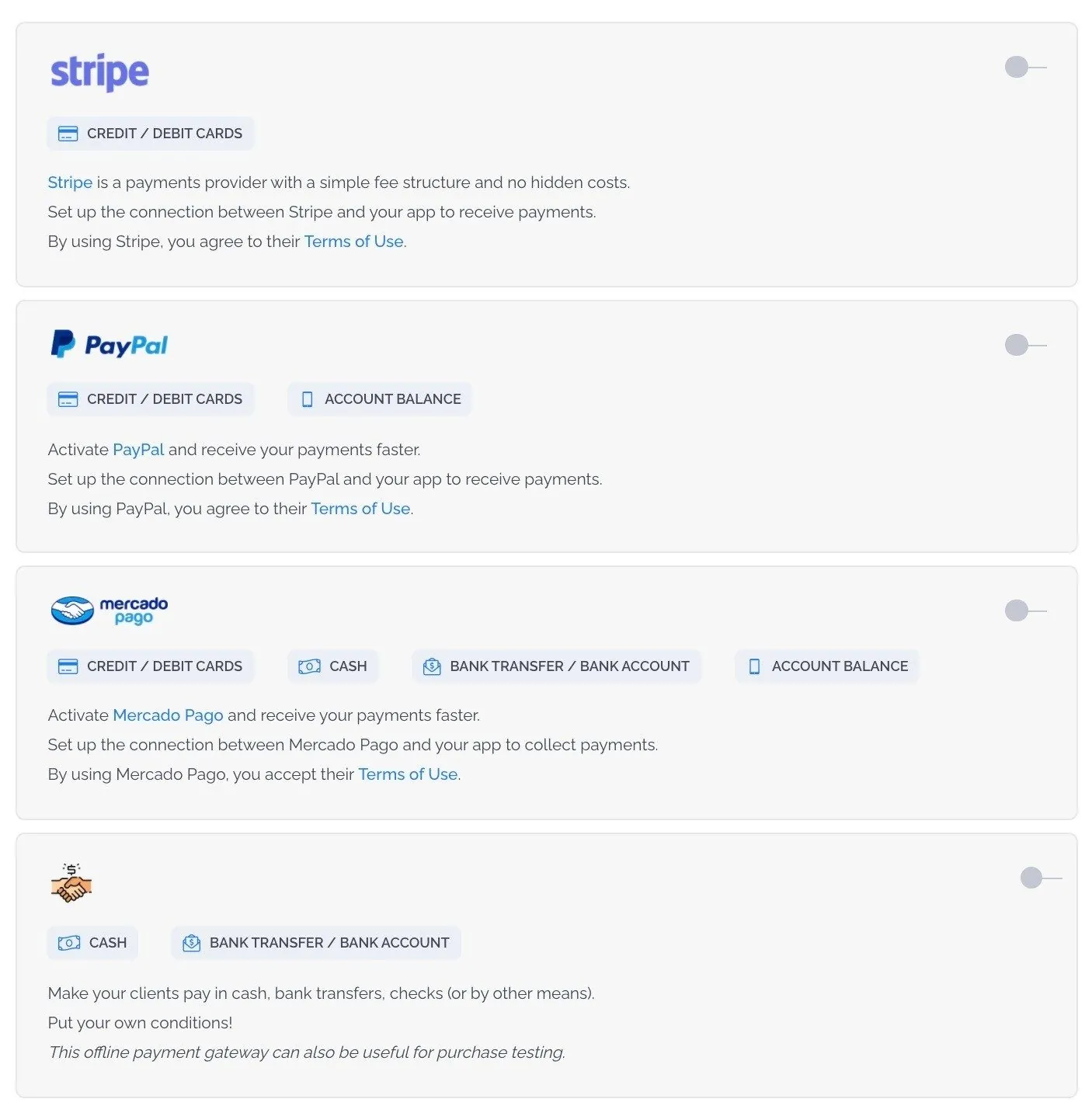
Once you’ve added some products with the eCommerce screen, open eCommerce Settings and configure the gateways you want to offer. New to payment gateways? Read Payment gateways for your shopping app first.
Stripe
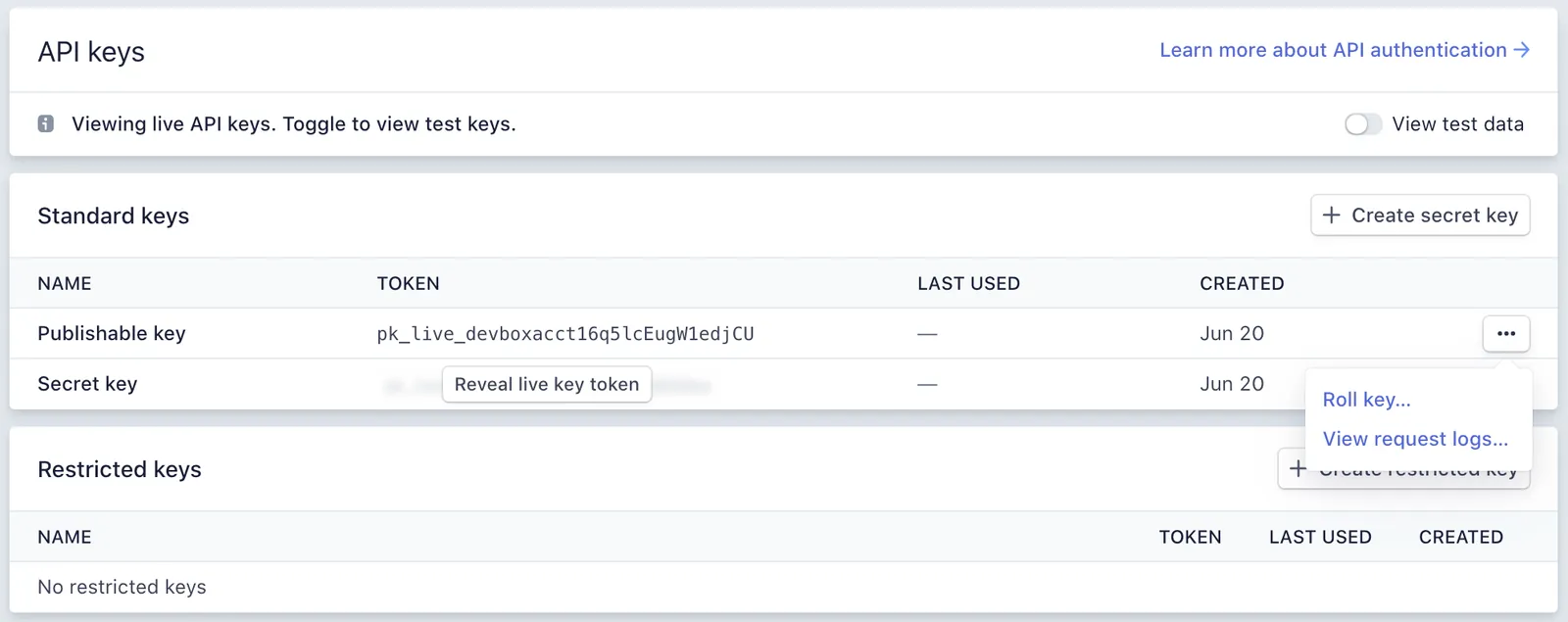
Create and activate a Stripe account, then copy your Publishable key and Secret key from the Stripe dashboard into MobAppCreator. See Stripe’s documentation on API keys.
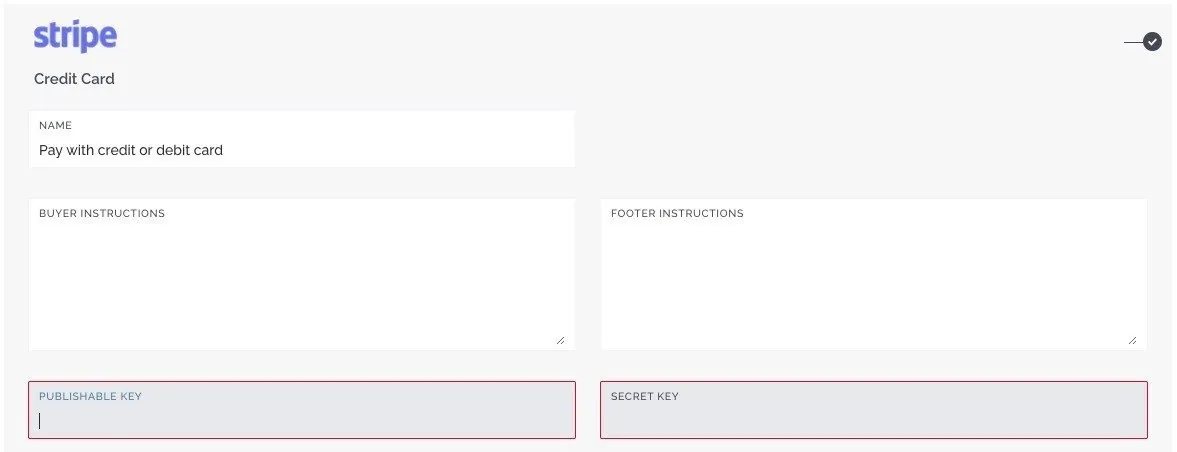
Use your live keys. With test keys, payments are only simulated and customers’ cards won’t be charged.
PayPal
You need a PayPal Business account to accept live payments.
- 1
Sign in
Log in to the PayPal Developer Dashboard with your PayPal account.
- 2
Create an app
In Apps & Credentials, switch to Live and click Create App. Give it a name and save.
- 3
Copy your credentials
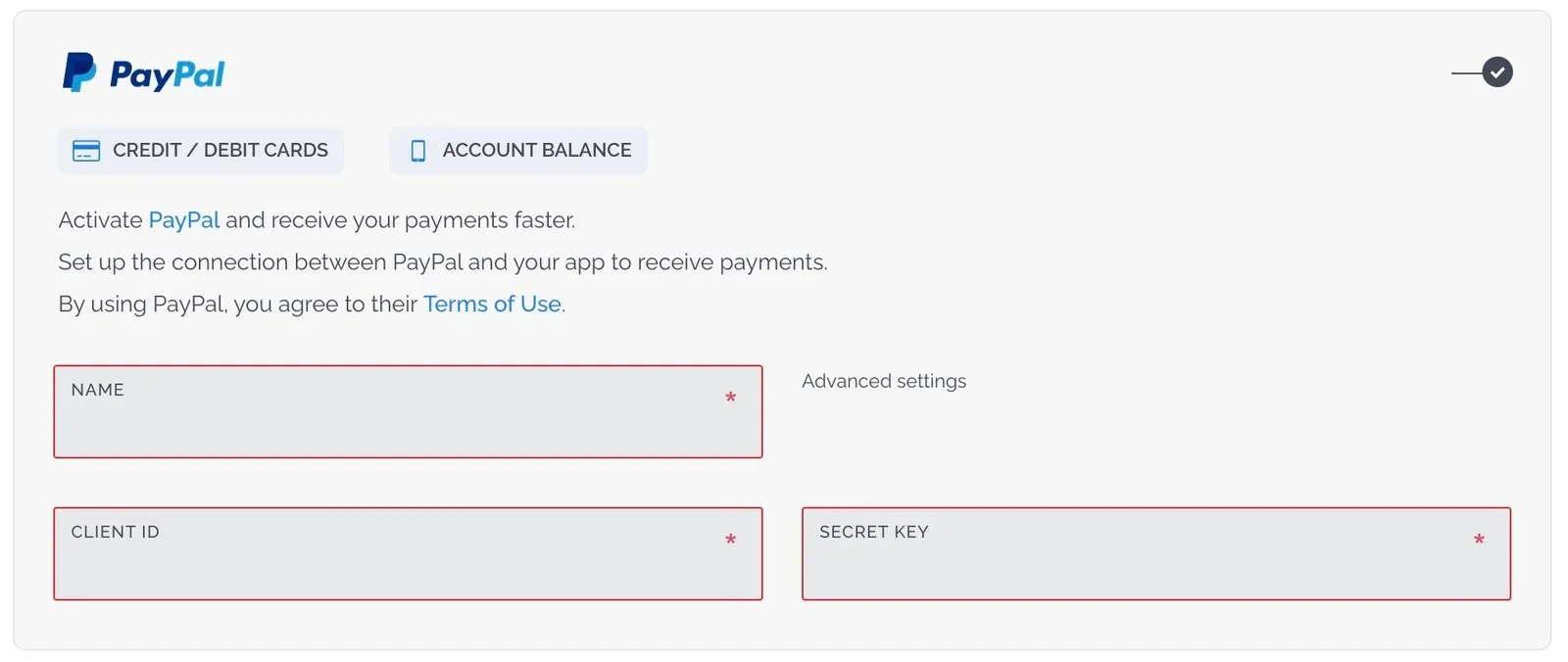
Copy the Client ID and Secret for your app.
- 4
Add them to MobAppCreator
In your PayPal integration, add a descriptive name and paste your Client ID and Secret.
Mercado Pago
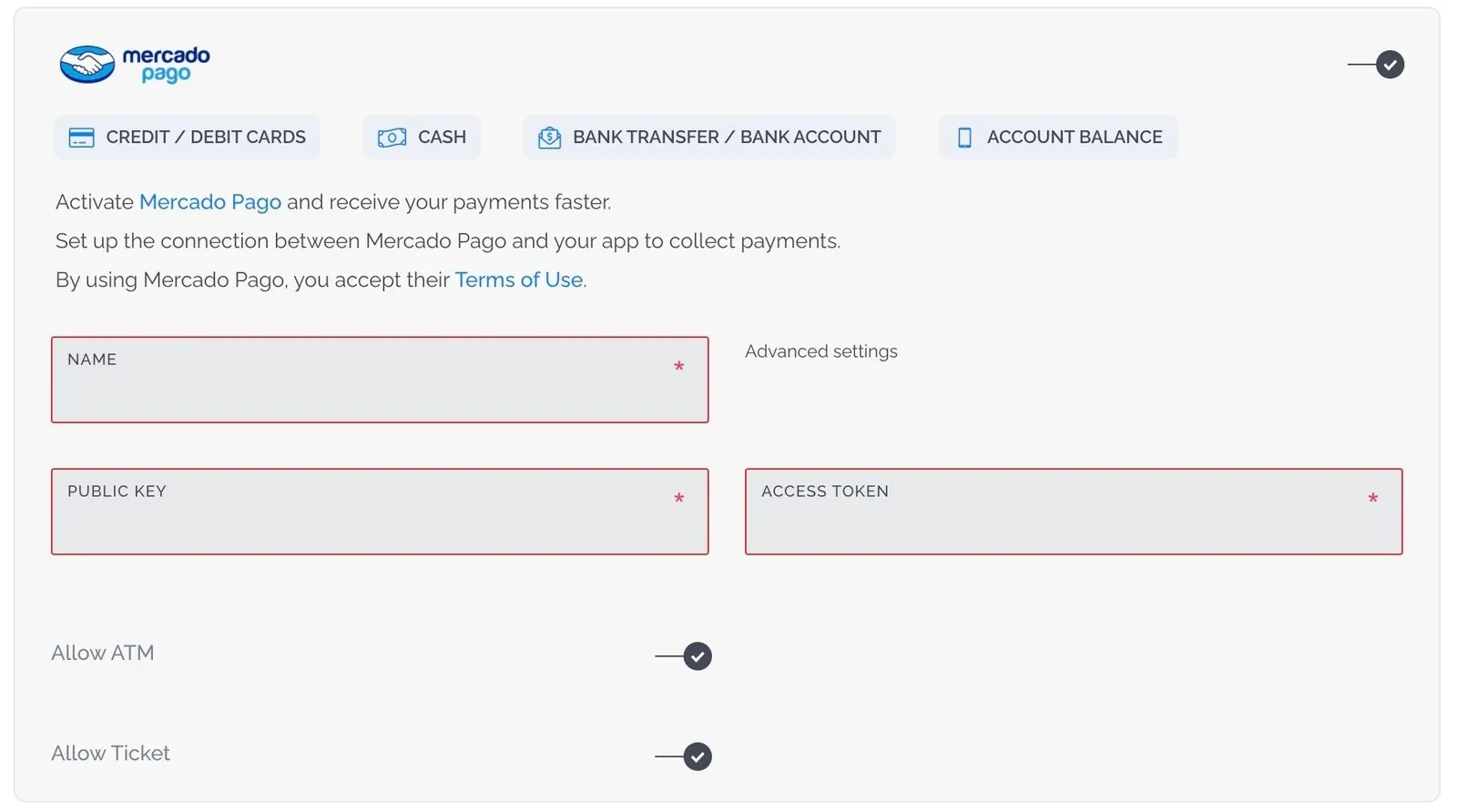
Create a Mercado Pago account. In its Credentials section, create your Public key and Access token, and paste them into the Mercado Pago section of your eCommerce settings. See the Mercado Pago documentation for details.
Offline payment and bank transfer
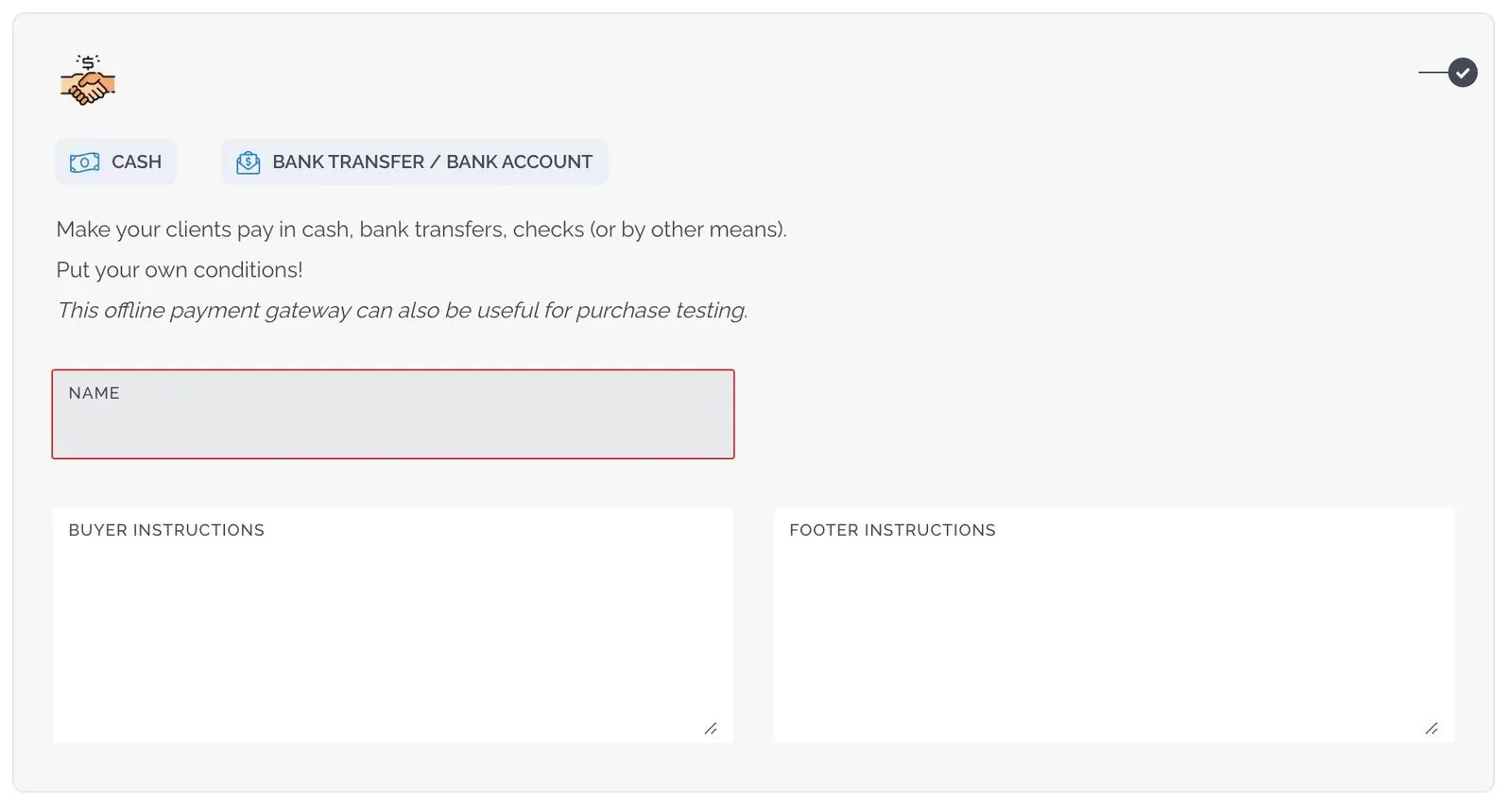
Use offline payment if you’d rather not set up an online gateway, none is available in your country, or you want to avoid transaction fees. You can also offer it alongside online options.
In the buyer instructions, enter your bank account details for transfers, or explain how customers can pay at your location.
Still need help?
Our team is happy to walk you through it.