Push notifications: what they are and how to send them
Send notifications to all users, groups or custom segments.
Updated April 6, 2022
What are push notifications?
A push notification is an alert that appears on your users’ phones, much like a text message. It’s a direct line to your audience and one of the best ways to drive engagement. Send to all users, to groups people subscribe to, or to a custom segment, with rich content and action buttons.
Push notifications need your app to be on a paid plan and live in the app stores.
Ideas
- An eCommerce app can announce new products.
- A school app can send updates to the parents of each grade.
- A church app can share this week’s sermon or a daily reading.
Send a notification
Go to Notifications → New Notification and choose Push Notification.
Audience
- All users sends the notification to everyone who has your app.
- Groups sends it to one of your notification groups.
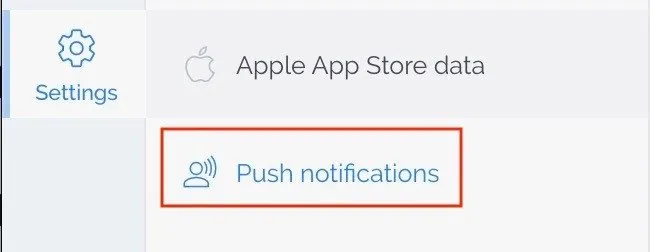
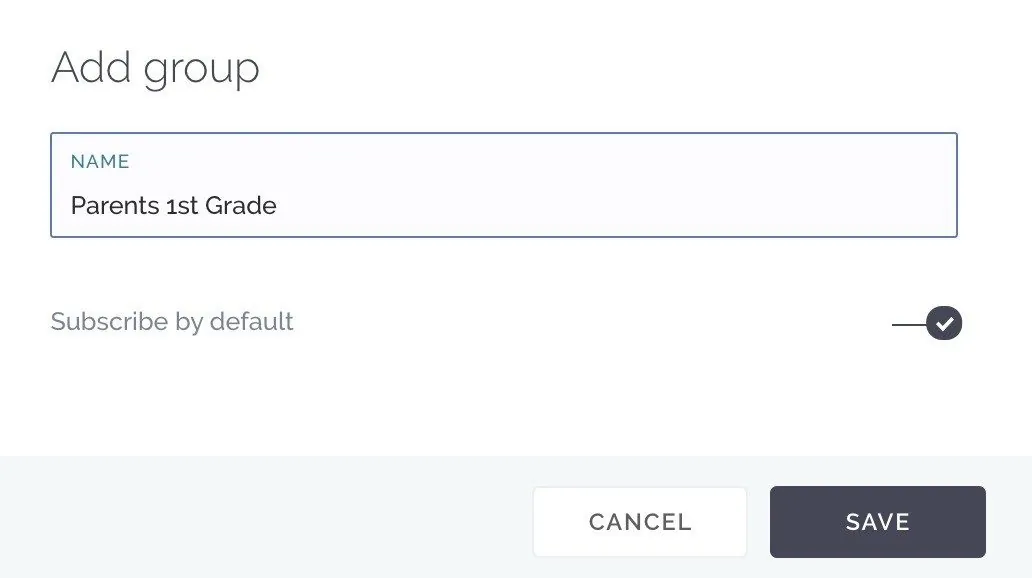
Create groups in Settings → Push Notifications to segment users by interest, user type, community and more. Click (+), name the group and choose whether new users join it by default.
Message content
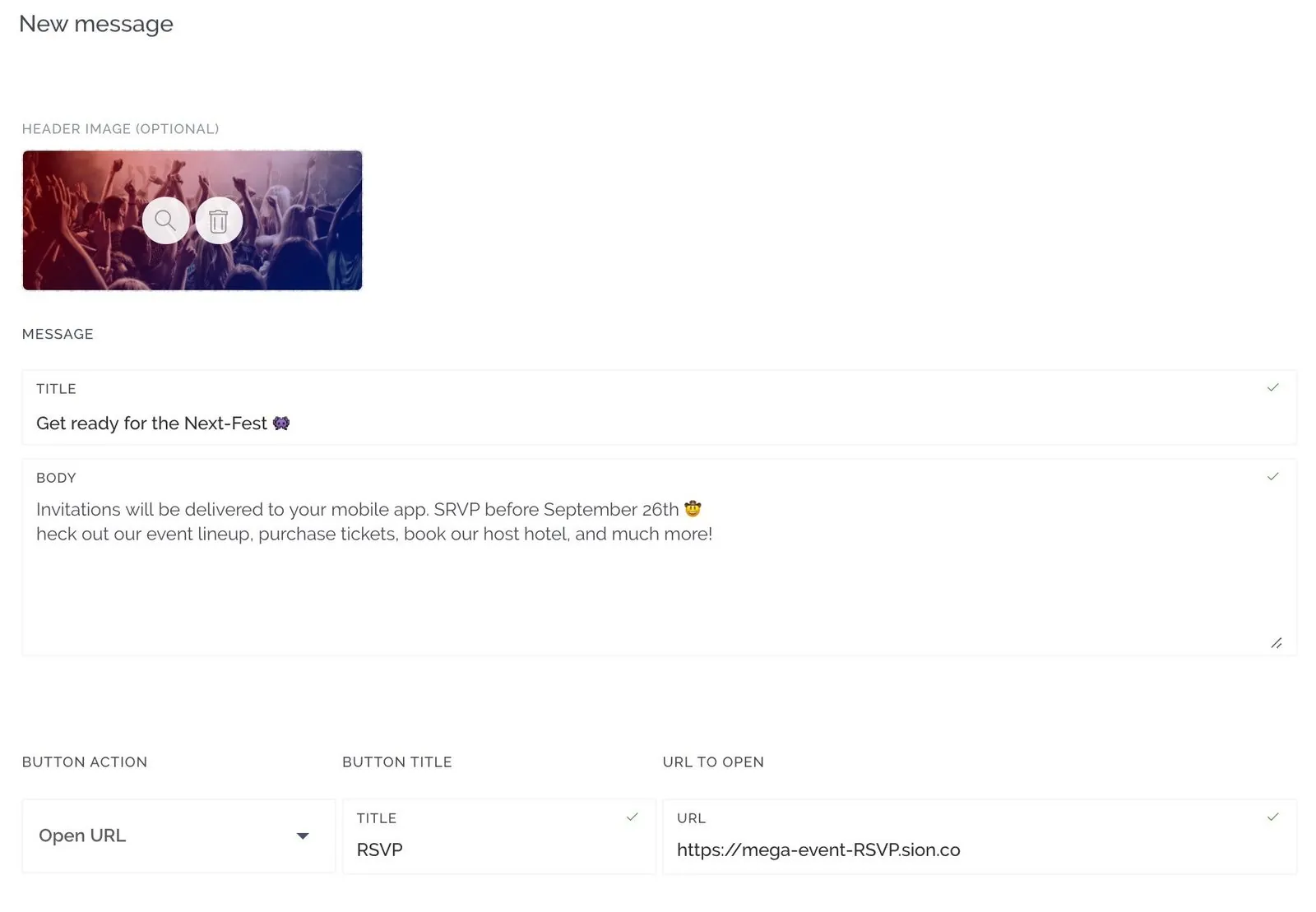
- Title. Keep it under 75 characters so it displays fully on every device.
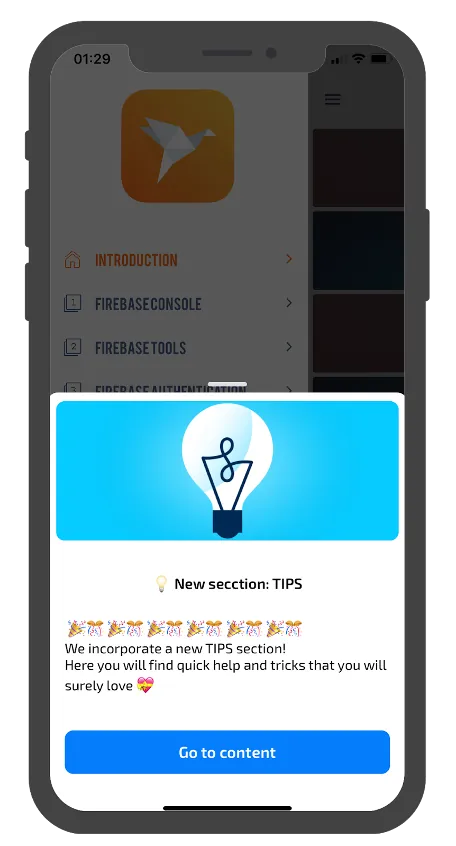
- Message. The text shown on the lock screen, expanding to full view when tapped. Emojis are welcome 😁.
- Action button. Optionally link to web content, a phone call, an article or any section of your app.
Schedule
Notifications are sent Now by default. Choose Schedule to pick a date and time. Click Send Notification to send it or add it to your scheduled list.
Tips
Create groups so people get the notifications that matter to them.
Don’t overdo it. Quality beats quantity; too many messages lead people to switch notifications off.
Make every message worth opening. Before you send, ask yourself:
- What does my audience want?
- When do they want to hear from me?
- Where are they located (and what time is it there)?
- Is the message personal?
- What do my statistics say?
Still need help?
Our team is happy to walk you through it.