How to create an Apple Developer account
Step-by-step enrollment in the Apple Developer Program.
Updated April 6, 2022
The Apple Developer Program lets you publish your app on the App Store. Apple requires every app to be published from its own developer account. The upside: the app lives in your account, so you keep control of it and your business’s name appears on the listing.
If your app is for internal use only, you need an Apple Enterprise developer account. If you have several apps with us, each one needs its own developer account.
- 1
Create or sign in with your Apple ID
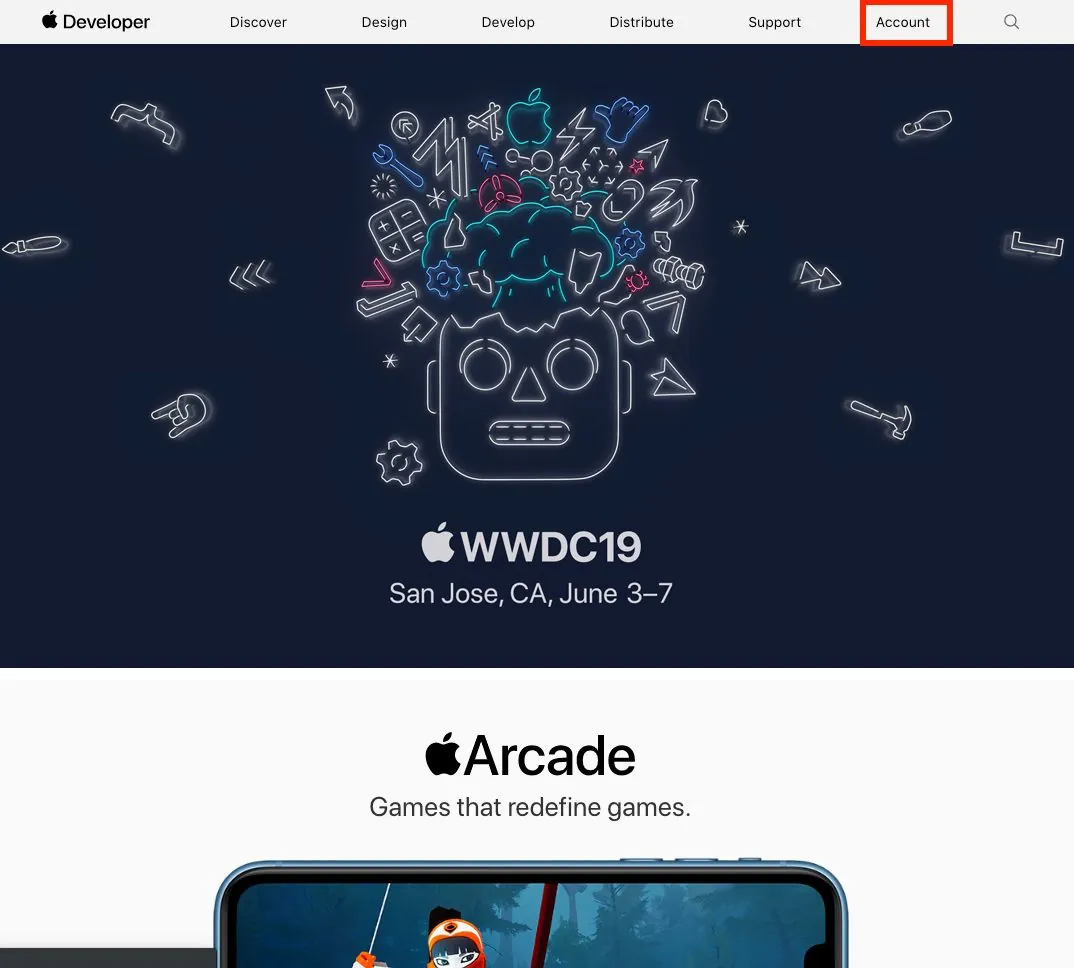
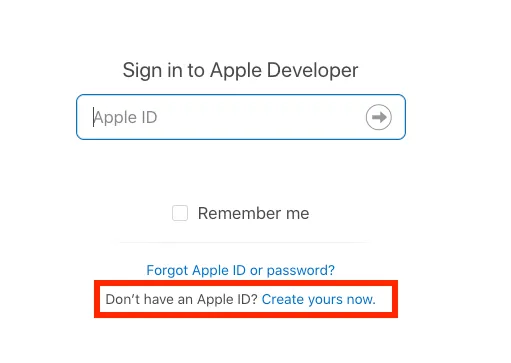
Go to developer.apple.com and click Account. If you don’t have an Apple ID, choose Create yours now. Then turn on two-factor authentication, which Apple requires. Doing this now makes the rest of enrollment smoother.
- 2
Join the Apple Developer Program
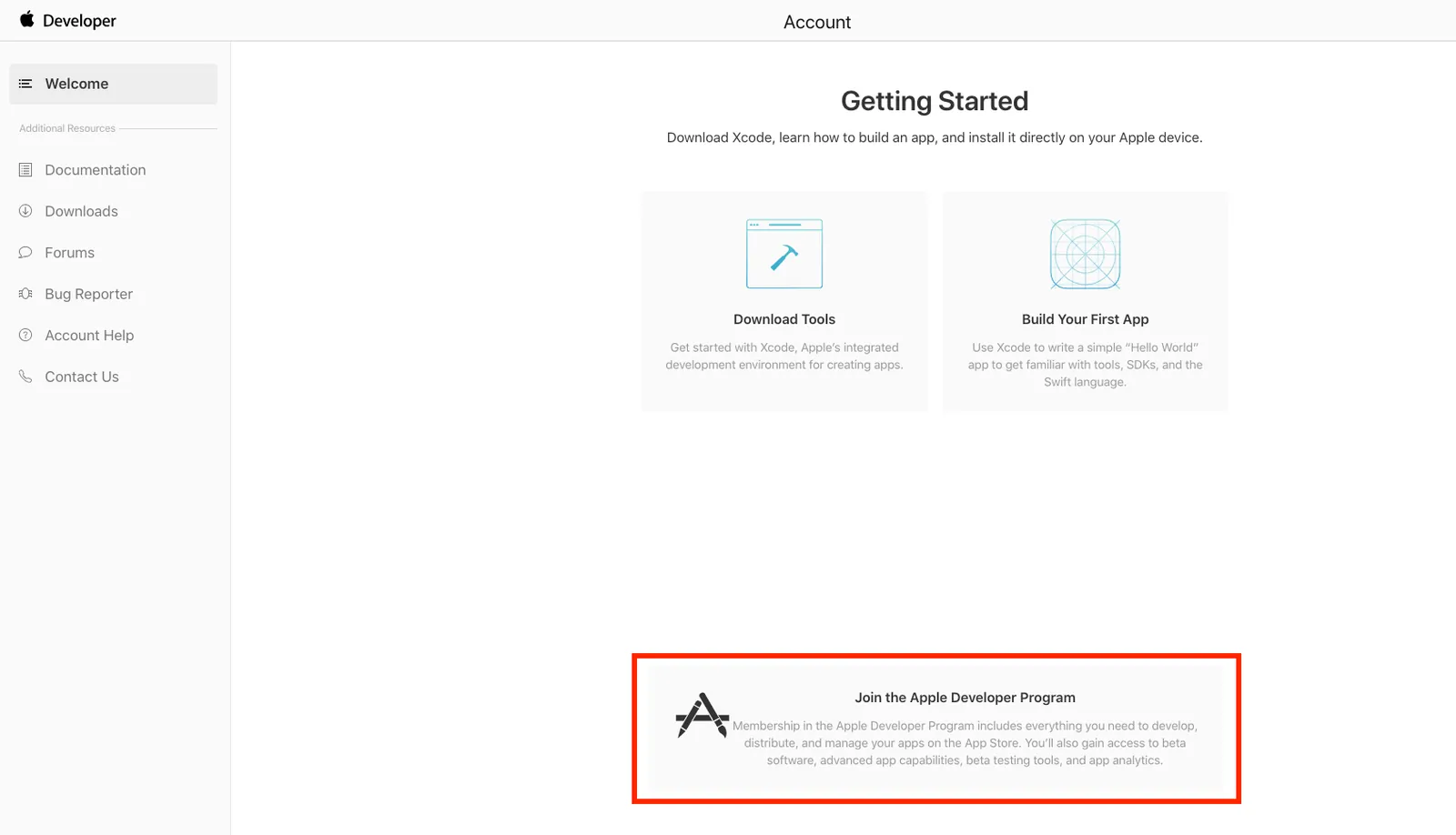
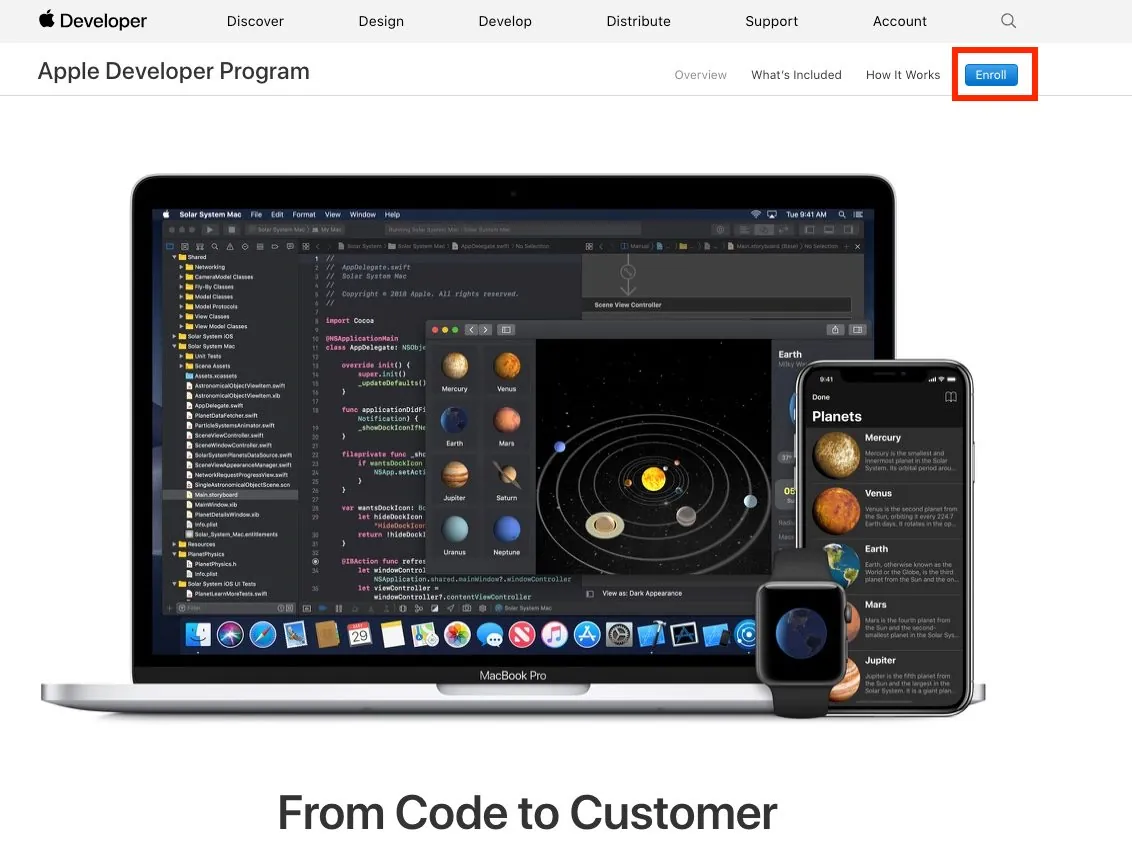
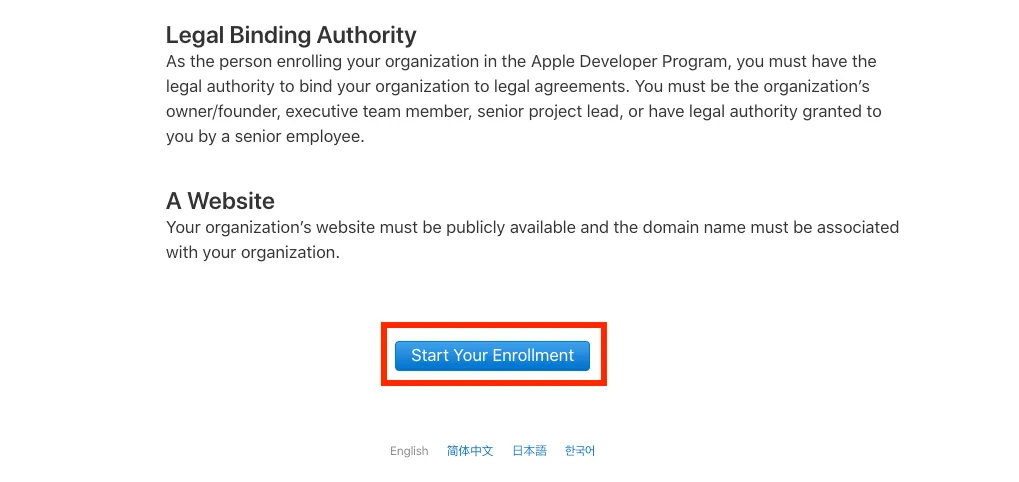
Once signed in, click Join the Apple Developer Program, then Enroll. Read about the two account types and click Start your enrollment.
- 3
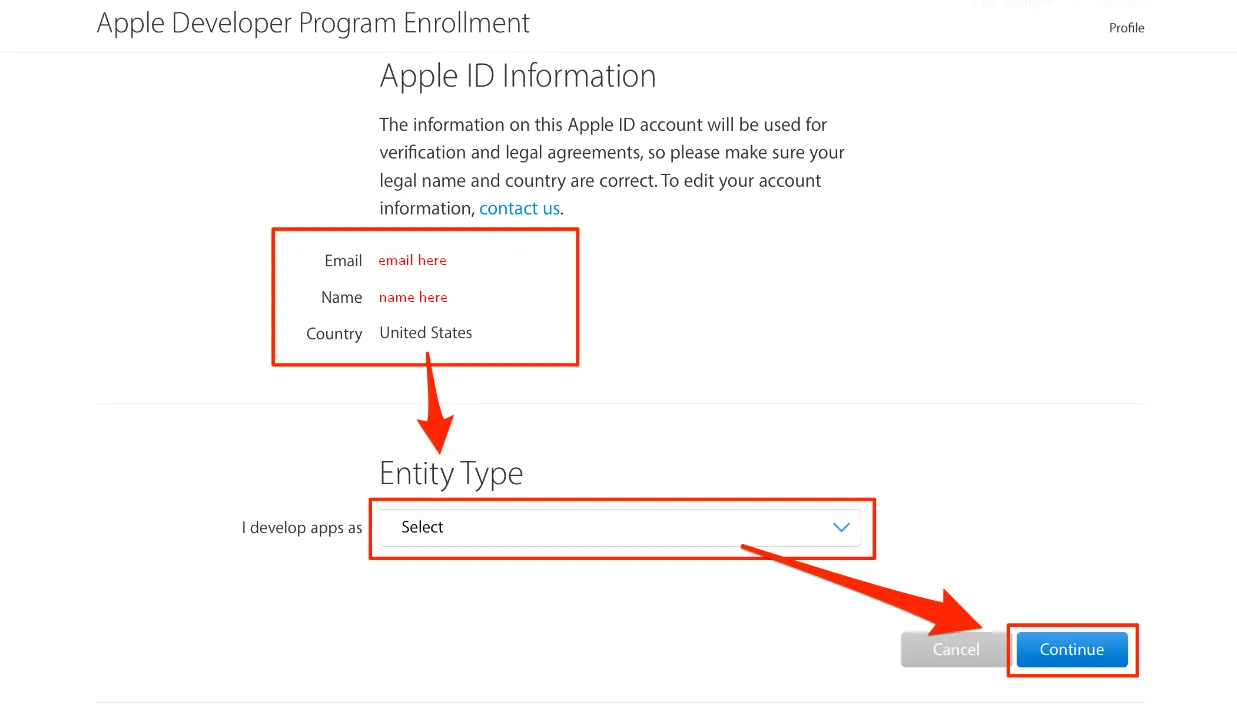
Confirm your details and choose an account type
Check your email, name and country, then choose Individual or Company / Organization. If the app is branded to your business, enroll as a company. You’ll need a D-U-N-S number: check if your company has one. Getting one is free and can take a couple of weeks.
- 4
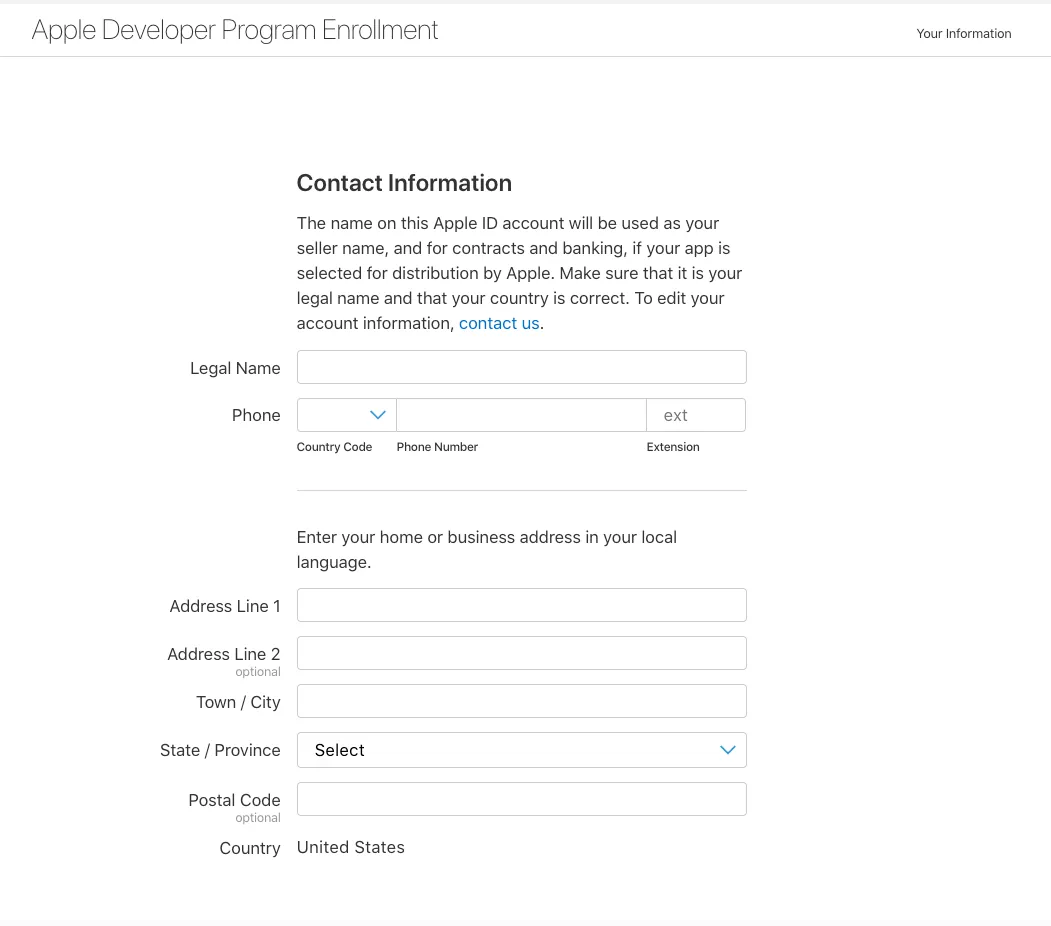
Enter your contact information
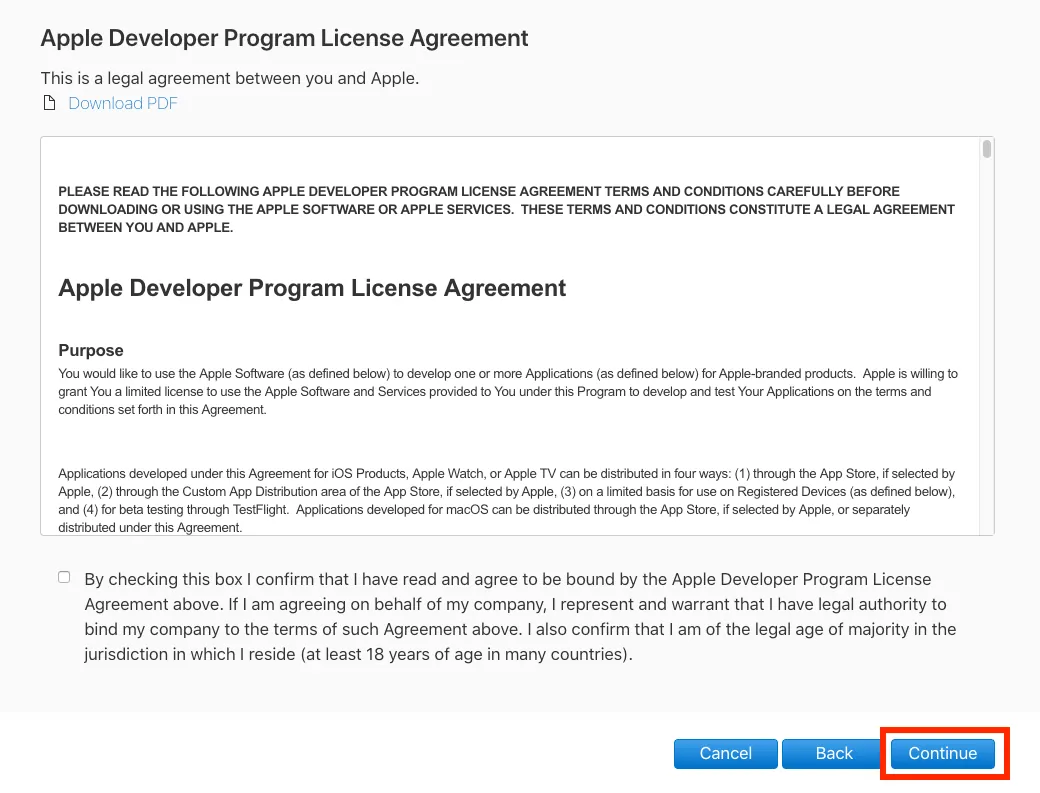
Fill in your contact details, read the Apple Developer Program License Agreement, tick the box and click Continue.
- 5
Verify your information
Review your account details and click Continue.
- 6
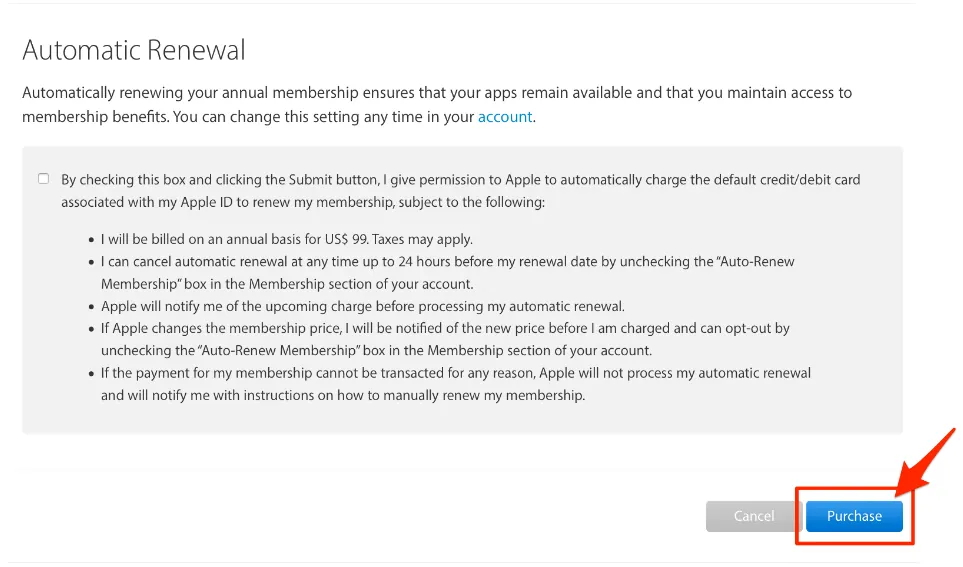
Choose automatic renewal
Apple shows the fee and membership length. Turn on automatic renewal if you don’t want to renew manually each year (you can turn it off later), then click Purchase.
- 7
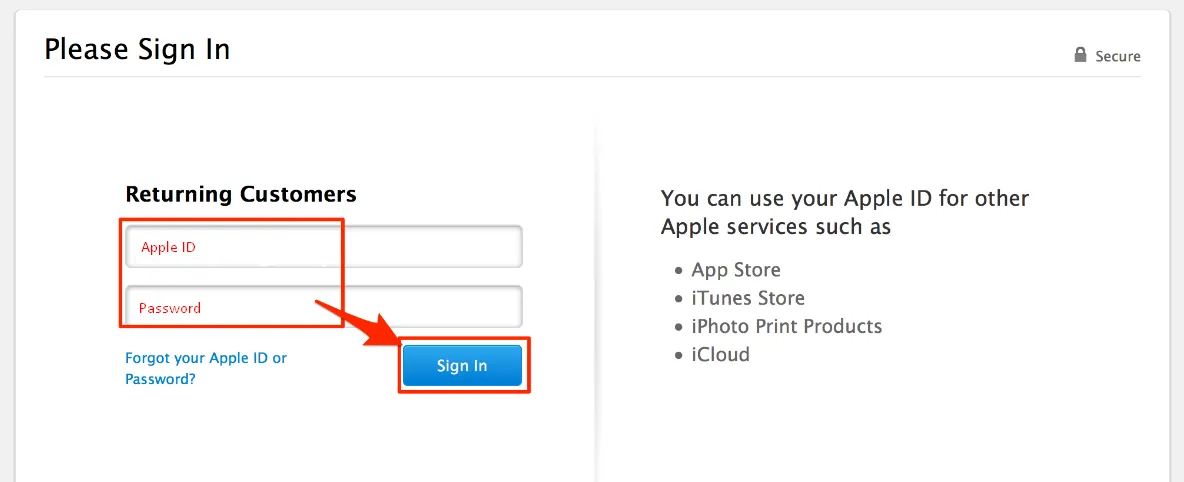
Sign in with your Apple ID
Sign in again on the payment page.
- 8
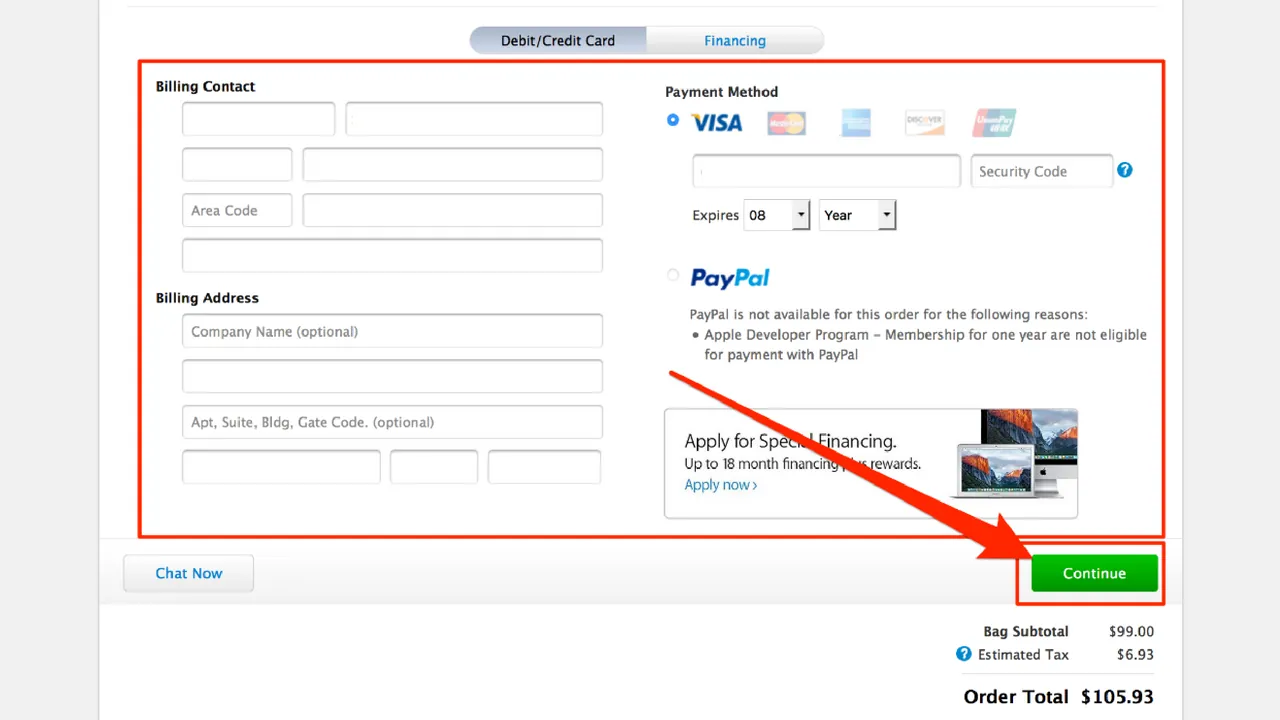
Pay the enrollment fee
Enter your billing information and complete the payment.
- 9
Complete the remaining screens
Apple usually emails you within 24 hours to confirm your developer account is active.
- 10
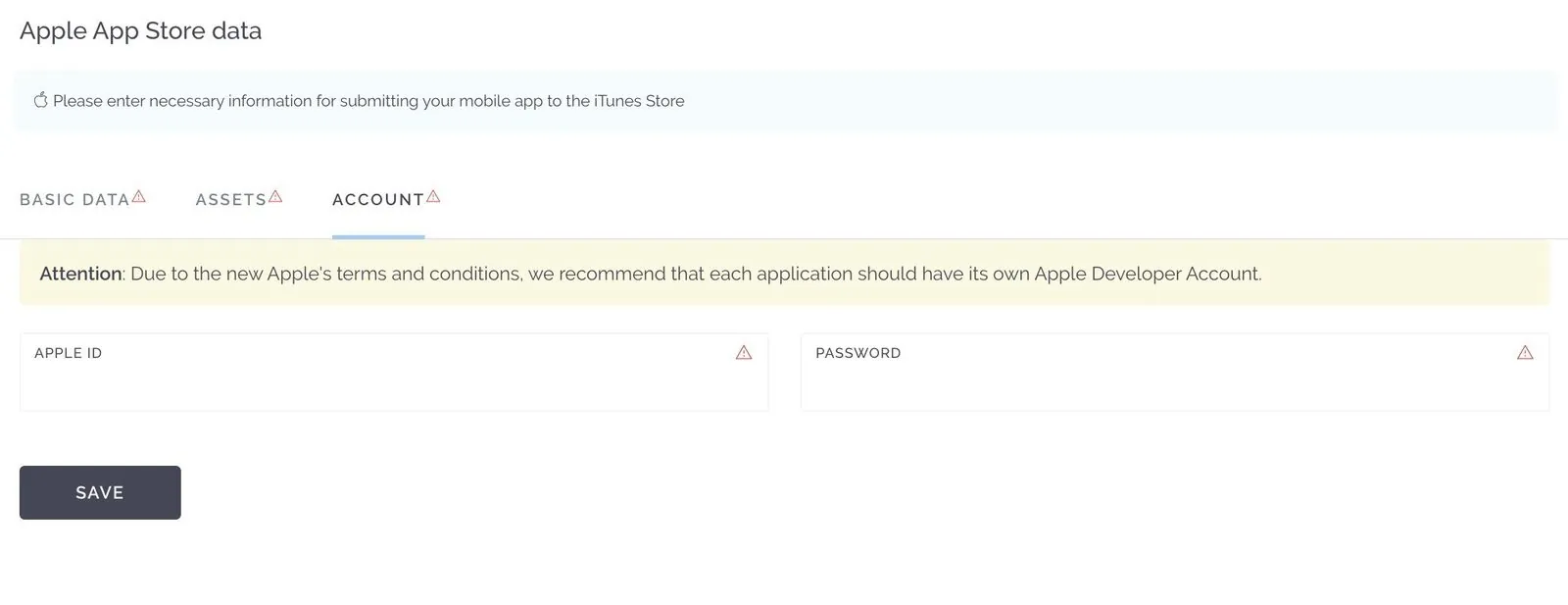
Add your Apple details in the App Dashboard
Go to Settings → Apple App Store Data and fill in the Apple-specific information for your app.
Give us access
To publish on your behalf, we need access to your developer account. Follow How to give MobAppCreator access to your Apple Developer account.
Tips
You may not have to pay. Non-profits, accredited educational institutions and government entities that only distribute free apps can request a fee waiver. You’ll need a D-U-N-S number.
You can have several apps in one account, as long as they relate directly to your business, aren’t the same in nature or purpose, and follow Apple’s guidelines.
Still need help?
Our team is happy to walk you through it.