Setting up two-factor authentication for your Apple account
Apple requires two-factor authentication on every developer account.
Updated April 6, 2022
What is two-factor authentication?
Two-factor authentication adds a layer of security to your Apple ID. Signing in needs your password and a code sent to a trusted device or phone number, so only you can access your account even if someone knows your password.
A trusted device is an iPhone, iPad or Mac where you’re signed in with your Apple ID; it displays a code when you sign in elsewhere. A trusted phone number receives codes by text message or phone call. You need at least one trusted number.
Most Apple IDs created in recent years already have two-factor authentication turned on. If yours does, you’re all set.
On iPhone or iPad
- 1
Open your Apple ID settings
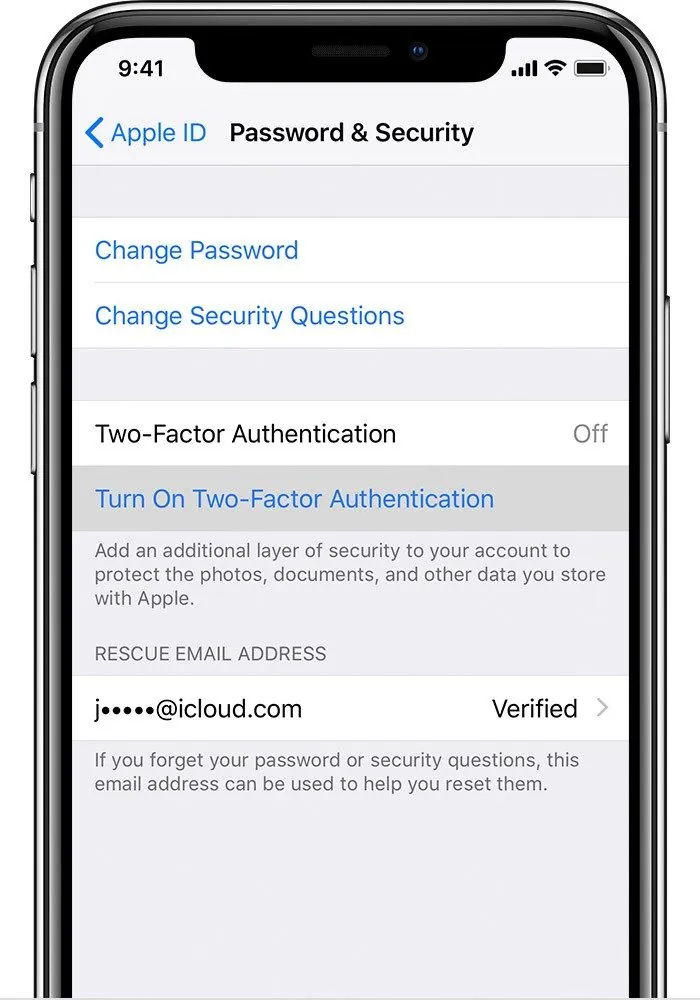
Go to Settings → [your name] → Sign-In & Security (called Password & Security on older versions of iOS).
- 2
Turn it on
Tap Turn On Two-Factor Authentication, then Continue.
- 3
Verify a trusted phone number
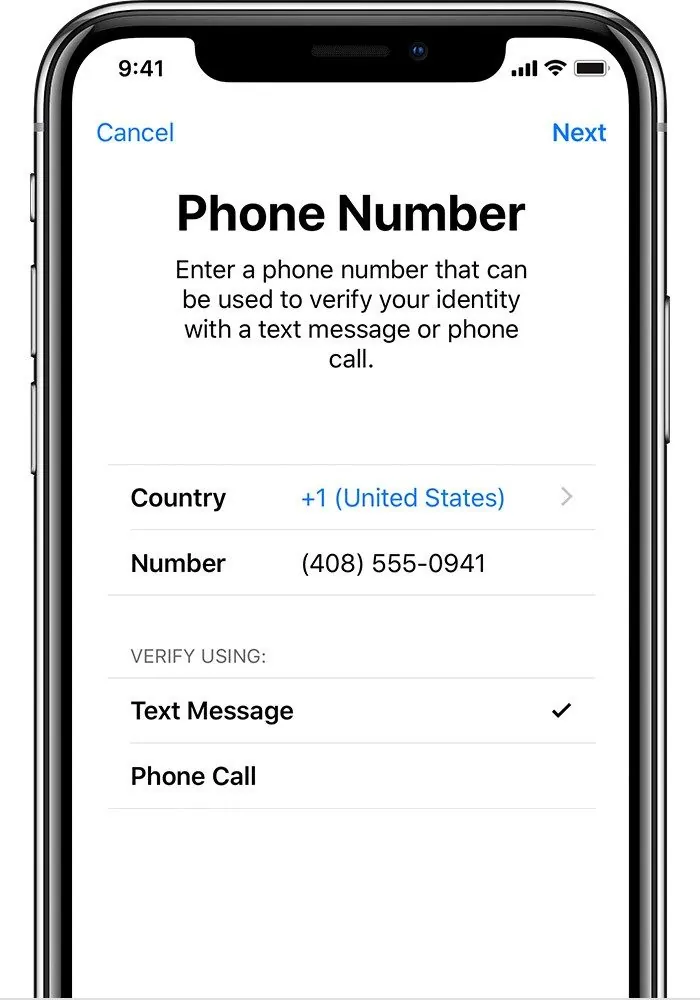
Enter the number where you want to receive codes, choose text message or phone call, and enter the code Apple sends you.
On a Mac
- 1
Open your Apple ID settings
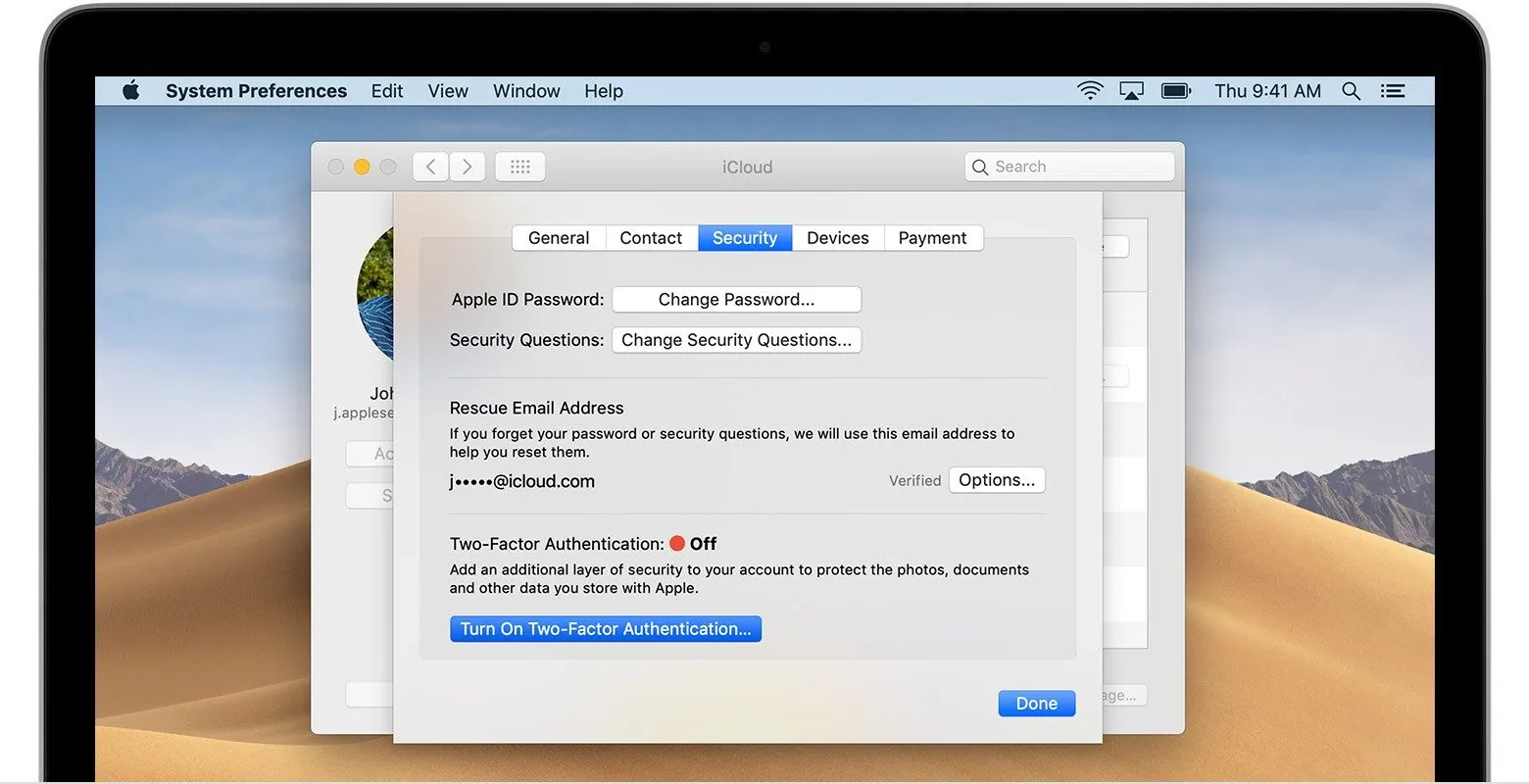
Go to Apple menu → System Settings → [your name] → Sign-In & Security (on older macOS: System Preferences → Apple ID → Password & Security).
- 2
Turn it on
Click Turn On Two-Factor Authentication and follow the steps.
Don’t have an Apple device? Contact Apple Support and they’ll help you set it up.
Still need help?
Our team is happy to walk you through it.