Introduction to screens
A guide to choosing the right screens for your app.
Updated April 6, 2022
What are screens?
Screens are the parts of your app your users see and interact with. Choosing the right screens, and using them well, is key to a successful app and to approval by the app stores. Your app must provide a real service to your audience, and screens are a big part of that.
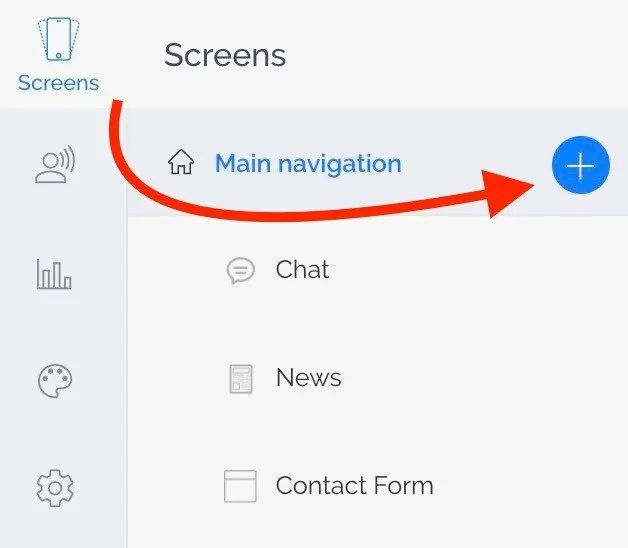
To add a screen, click the (+) next to Main navigation. This opens the Screen Library, where screens are organized into groups.
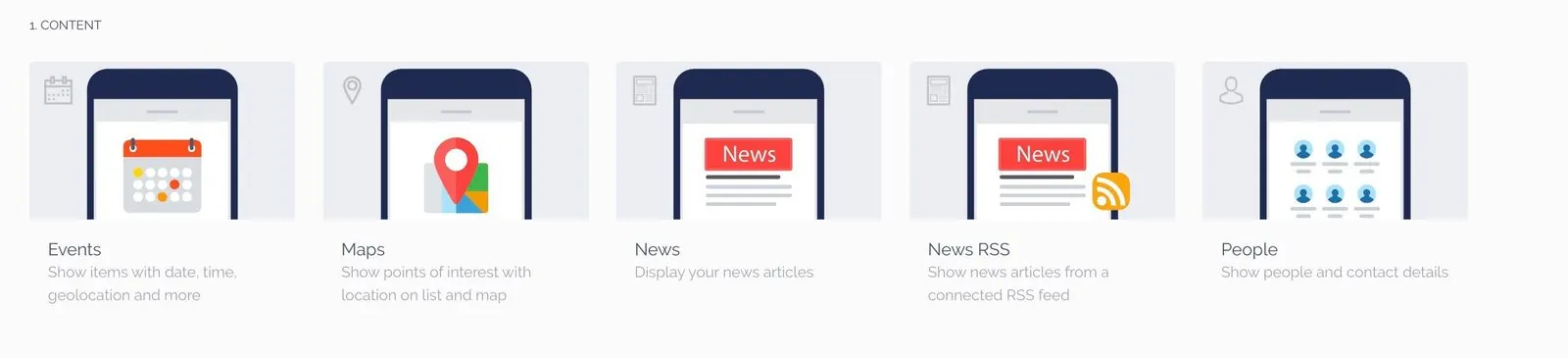
1. Content
Content screens are usually the most important part of your app, because they hold the information your users came for: news articles, photos, videos, company information, maps of your locations, events and more. Content screens include:
- Events
- Maps
- News and RSS
- People
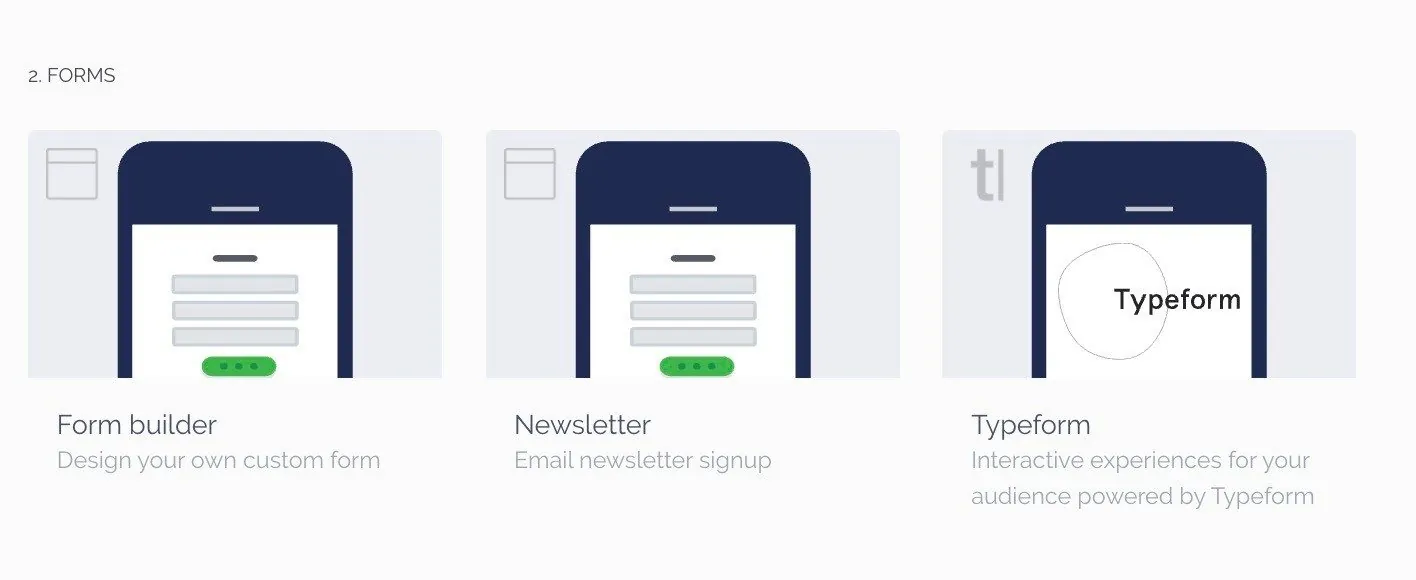
2. Forms
Forms collect information from your audience and save the responses to your database. Use them for suggestions, reservations, subscriptions and much more.
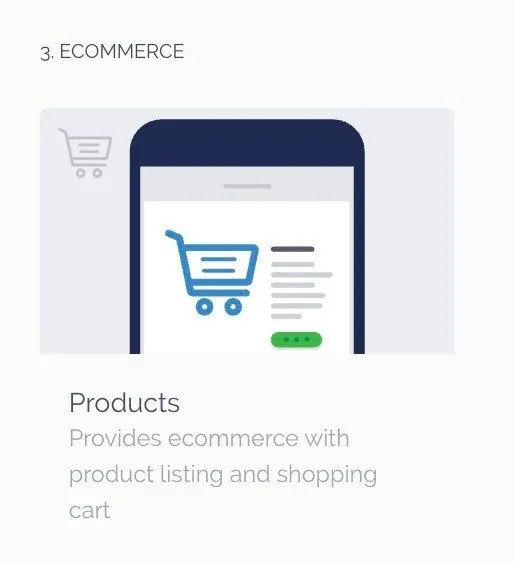
3. eCommerce
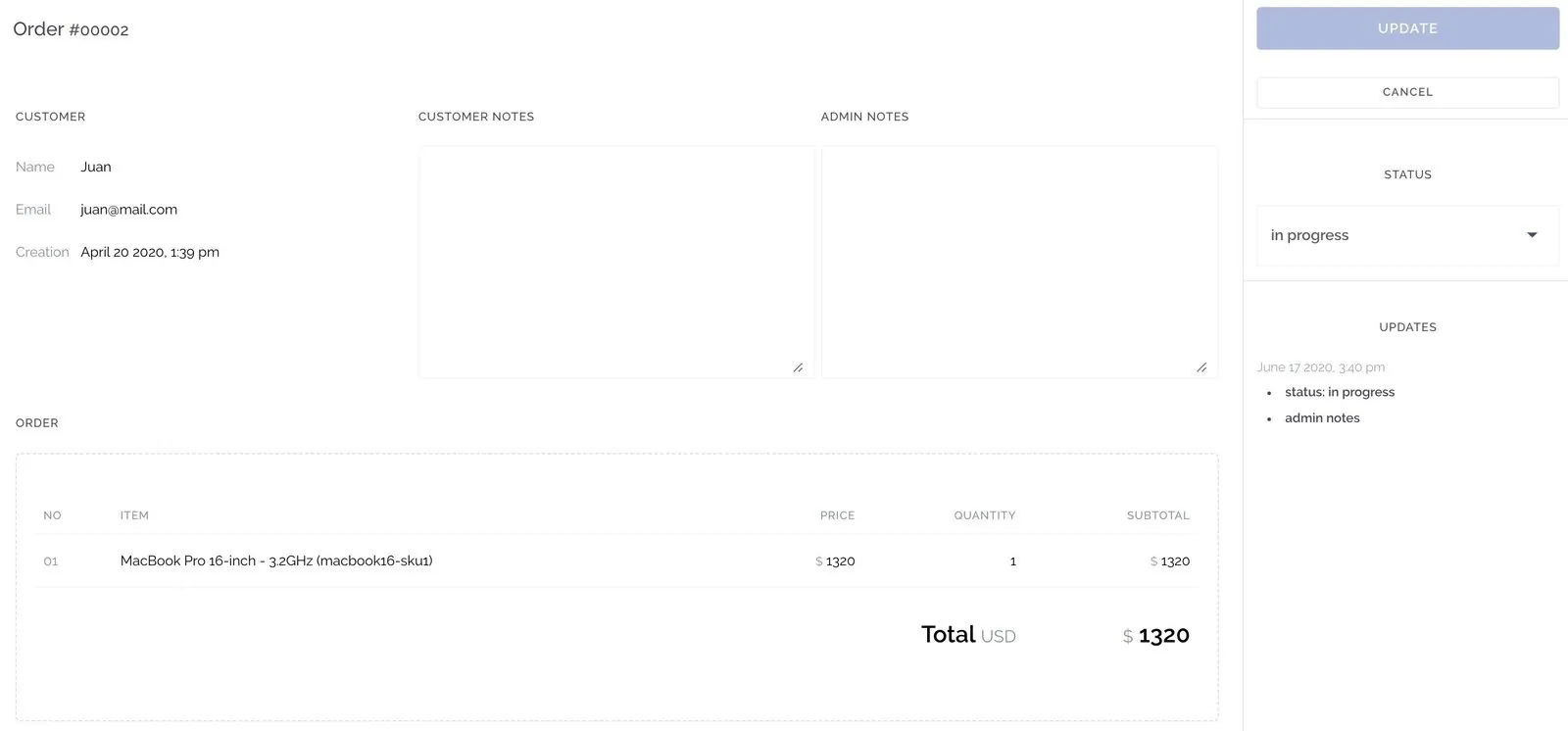
If you sell products or services, the eCommerce screen lets you showcase and sell them. Customers add items to their cart and check out, which creates a new order in your dashboard. See Payment gateways to learn more.
4. Social
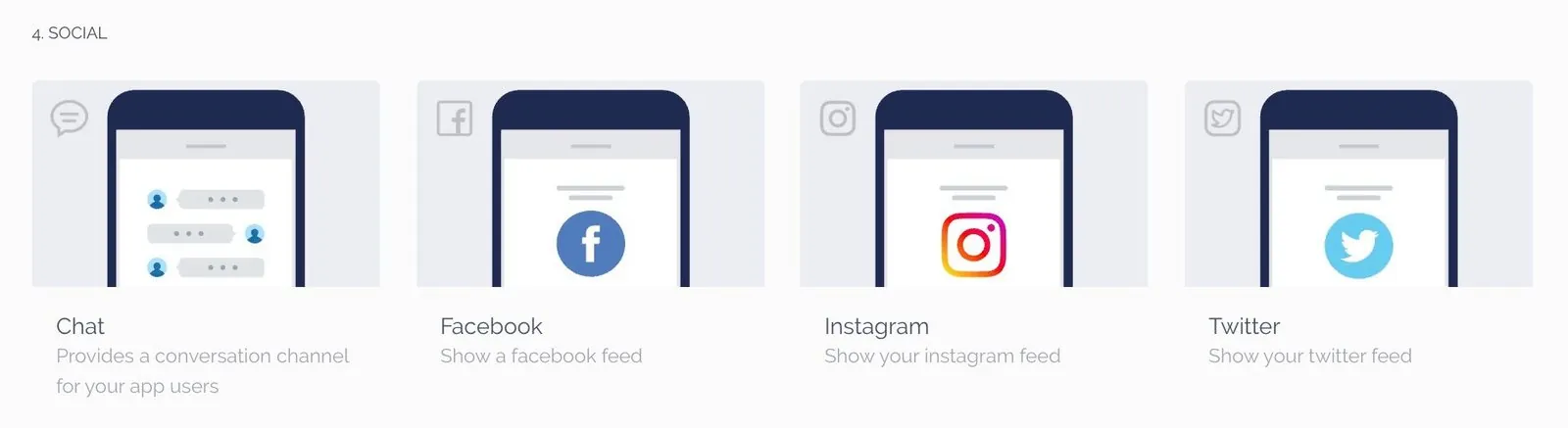
Social screens connect your app to your existing social networks. The Chat screen lets your users talk to each other directly inside your app.
5. Media
Media is part of almost every app, from a welcome video to podcasts or a live stream. Media screens include:
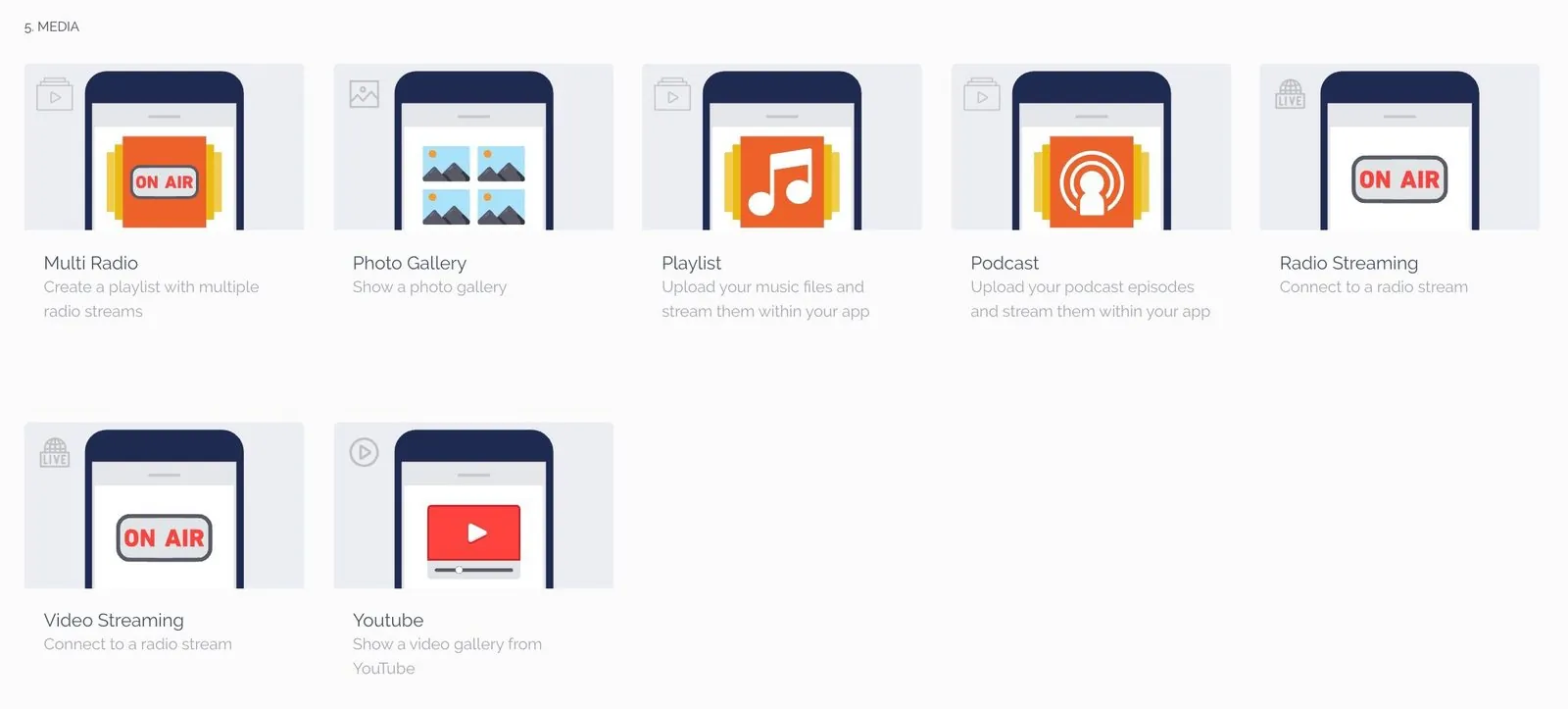
- Multi radio
- Photo gallery
- Playlists
- Podcasts
- Radio streaming
- Video streaming
- YouTube integration
6. Actions
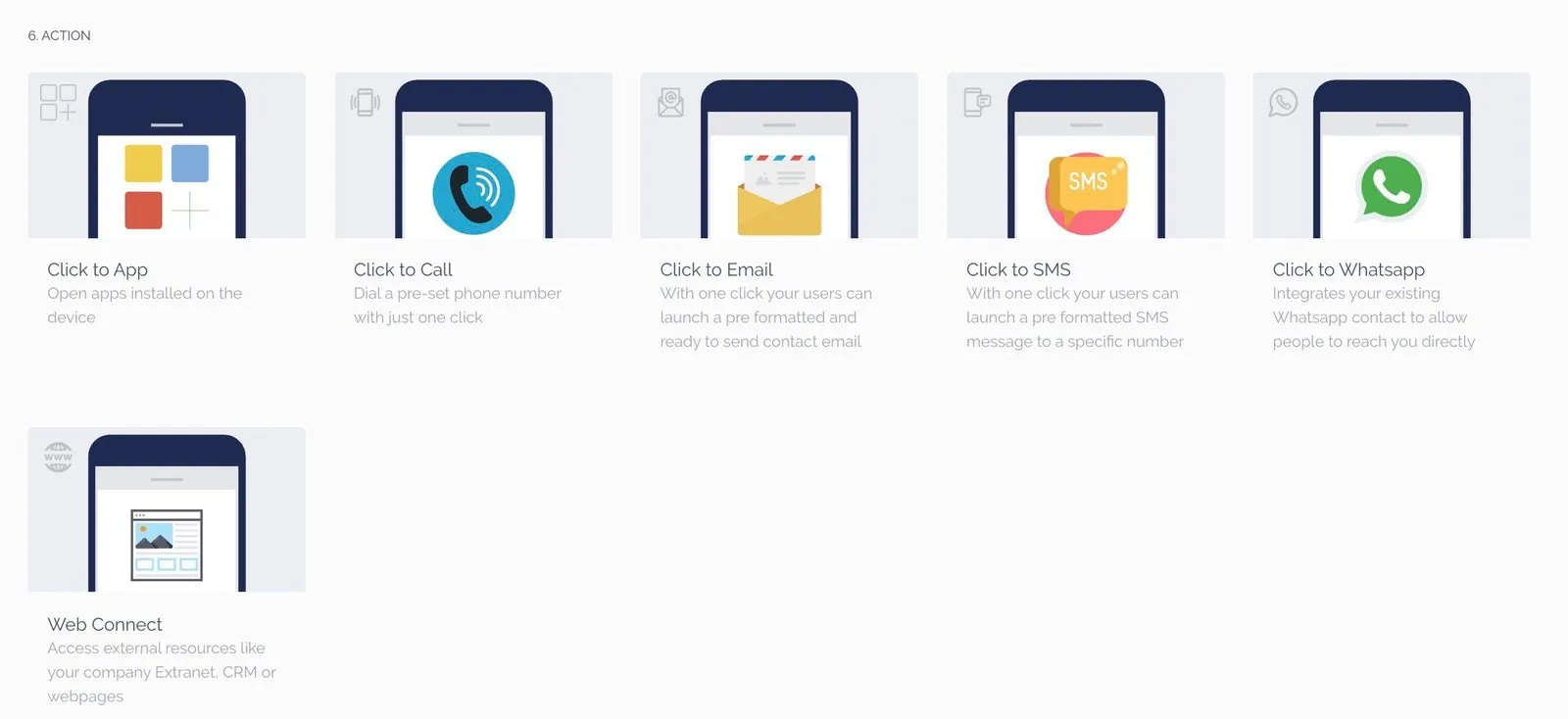
Action screens connect your app to other systems or to features of the device. Add click-to-call anywhere in your app, or let users send you a text message, email or WhatsApp message. External connections can open web pages or your company’s own systems.
Keep a good balance between content inside your app and links to external websites. As a rule, use no more than two or three external sites. Apps that mostly show websites are likely to be rejected by Apple, because they don’t offer an experience different from a browser.
7. Others
Additional screens add customization and functions to your app:
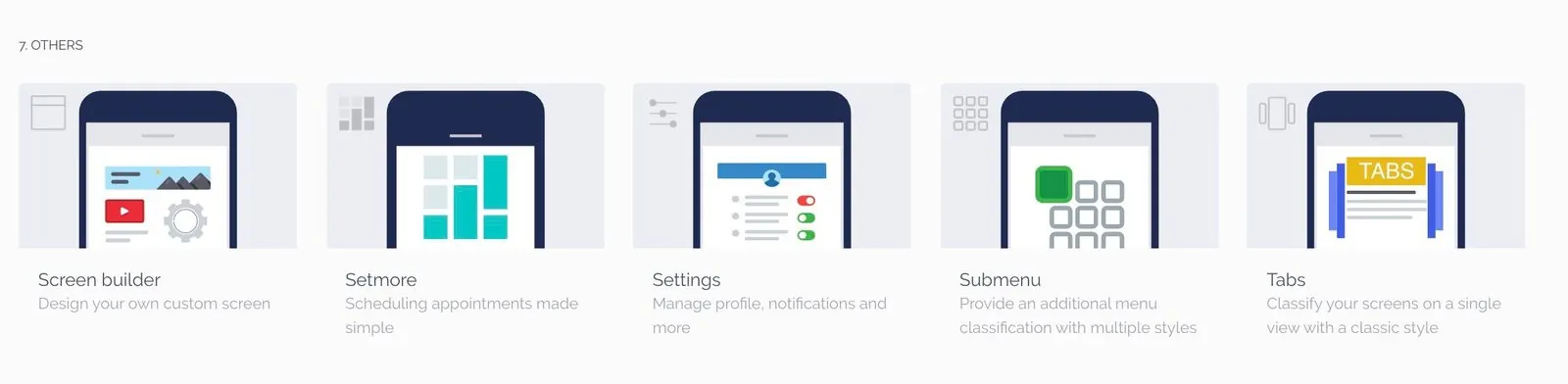
- Screen Builder
- Setmore Appointments
- Submenu
- Tabs
- Settings
Still need help?
Our team is happy to walk you through it.