First steps with MobAppCreator
Get to know the App Dashboard and how MobAppCreator works.
Updated April 6, 2022
Welcome to MobAppCreator
MobAppCreator powers thousands of mobile apps for small businesses and large companies. This series of articles takes you through the fundamentals: how to build your app, how to publish it, and how to keep your audience engaged once it’s live.
What is MobAppCreator?
MobAppCreator is an app building platform that lets you put together a polished app in minutes, while still giving you the power to build complex apps. Features most apps need from day one, such as push notifications, user login, media and support for both iOS and Android, are already built in.
The App Dashboard
The App Dashboard is where you manage all of your app’s content and features. It has three main parts:
- Side menu, on the left. This is how you reach the platform’s core features.
- Main navigation, next to the side menu. This holds your app’s screens and functions, and gives you access to the screen library.
- Emulator, on the right. It shows a live preview of your app as you change its content and design.
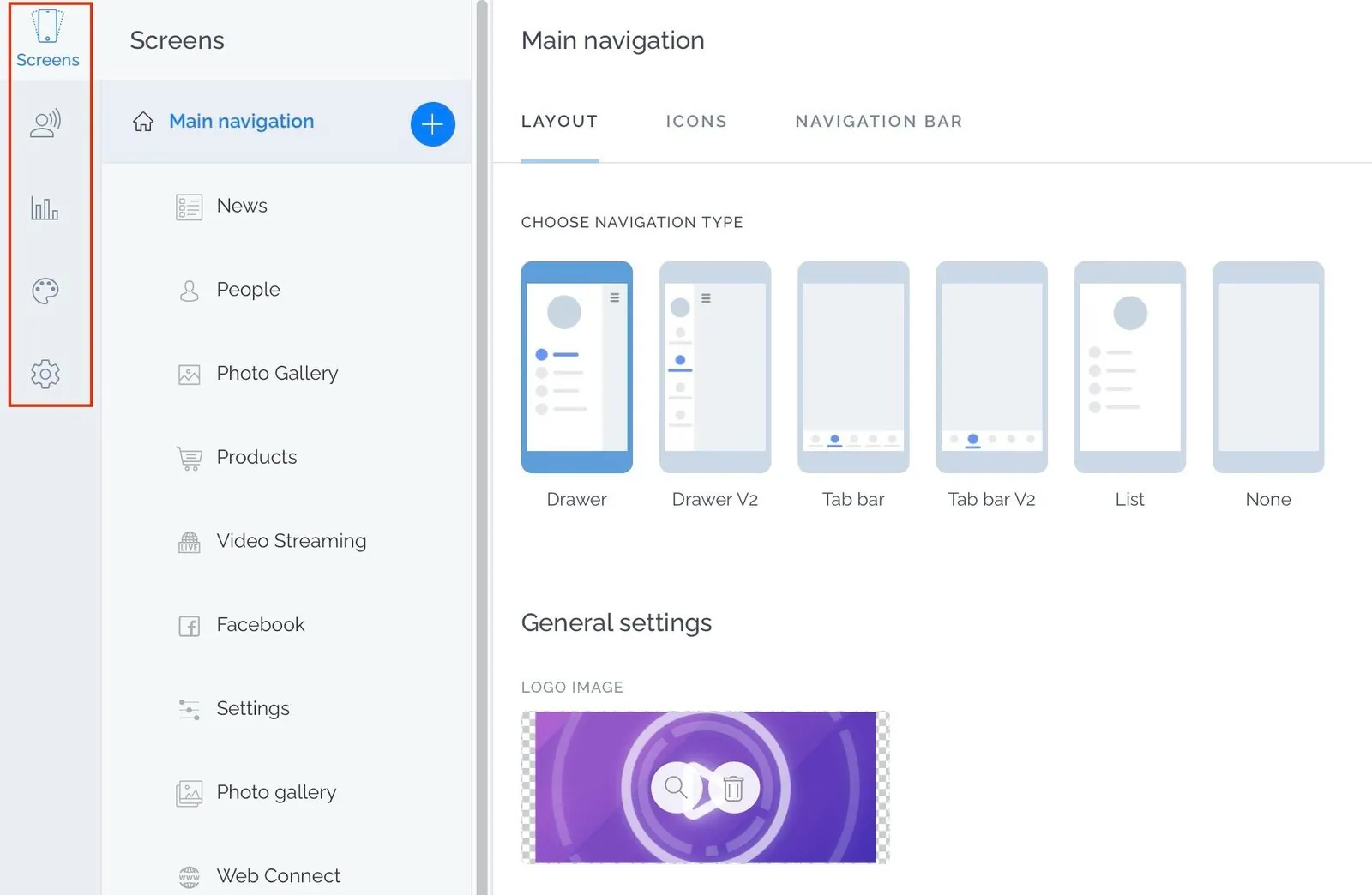
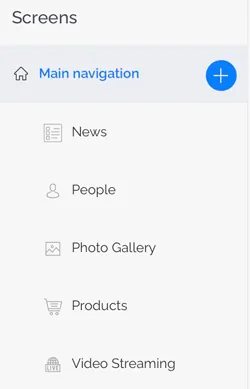
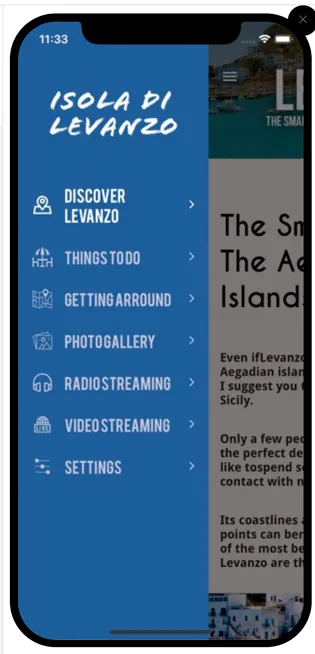
When you created your account you started with a blank app, a template, or an app designed by our Pro Services team. Templates are a starting point: swap in your own content and your app is ready to launch. To start another app, open My Applications at the top of the dashboard and click Create New App.
Want our Pro Services team to design your app or build custom features? Write to info@mobappcreator.com.
Screen features and platform features
You’ll see two kinds of features mentioned in these guides.
Screen features are added to your app and reached from its main navigation menu, for example:
- Content screens
- Social media screens
- Form builder screens
- Media streaming screens
Platform features are built into the system as a whole, for example:
- Design components
- Order management
- Push notifications
- User management
- Statistics
Some advanced features are only available on specific plans.
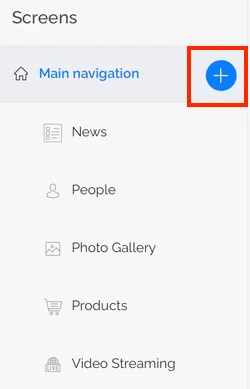
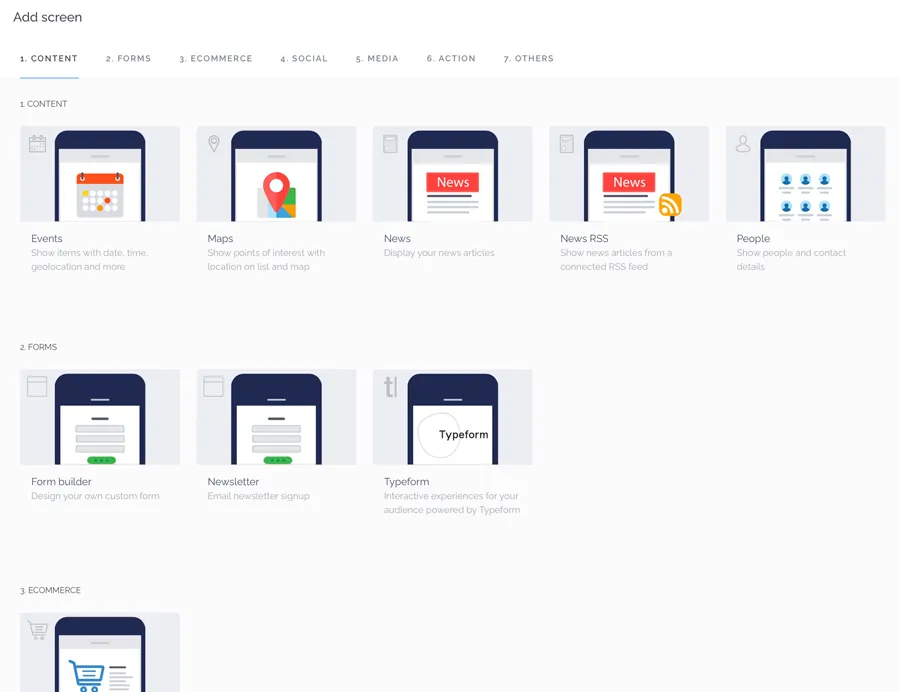
To add a screen or edit an existing one, click the (+) button in your app’s Main navigation. This opens the full list of screens available for your app.
Preview your app on your phone
The emulator updates in real time, but nothing beats trying your app on a real device. Install the MobAppCreator preview app from the App Store or Google Play, then sign in with your email address and your app code. You’ll find the app code in My Applications.
Next, learn about the core components of the App Dashboard.
Still need help?
Our team is happy to walk you through it.