Create a submenu
Group screens together under a submenu.
Updated April 6, 2022
Submenus group related screens together, giving you more ways to organize your app’s sections.
- 1
Add the Submenu component
In Main navigation, click (+), scroll down and select Submenu.

- 2
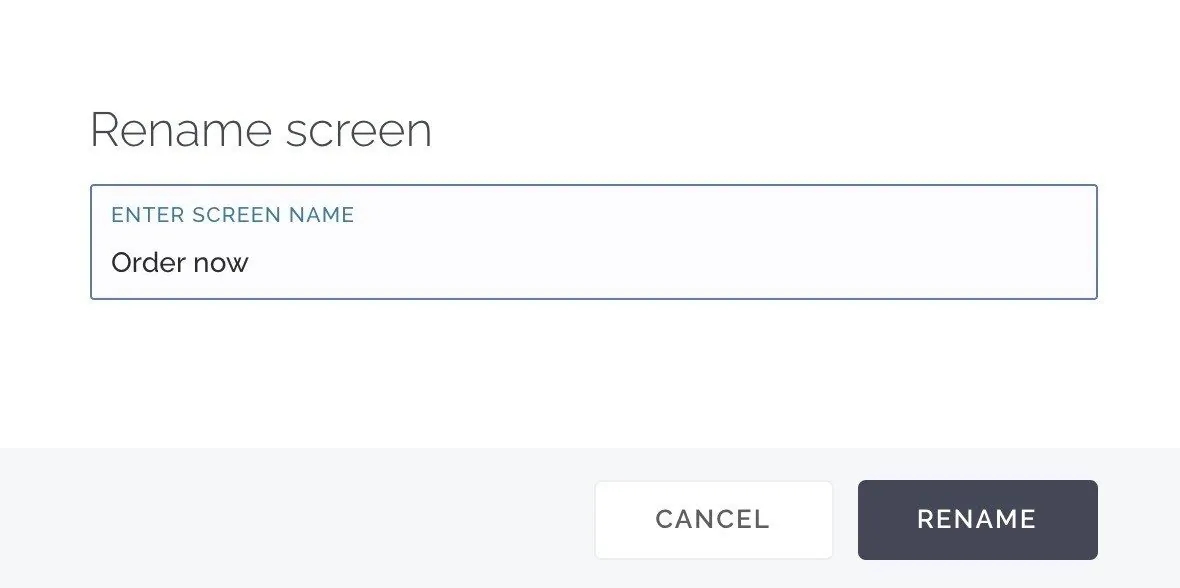
Name it
Click the submenu in Main navigation and give it a name, for example “Order now”.
- 3
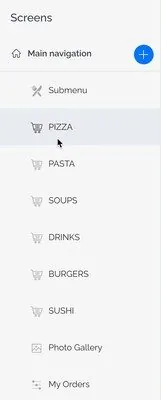
Move screens into it
Drag each screen you want into the submenu.
- 4
Customize its look
Click the submenu to choose how it’s displayed and add images for its items.
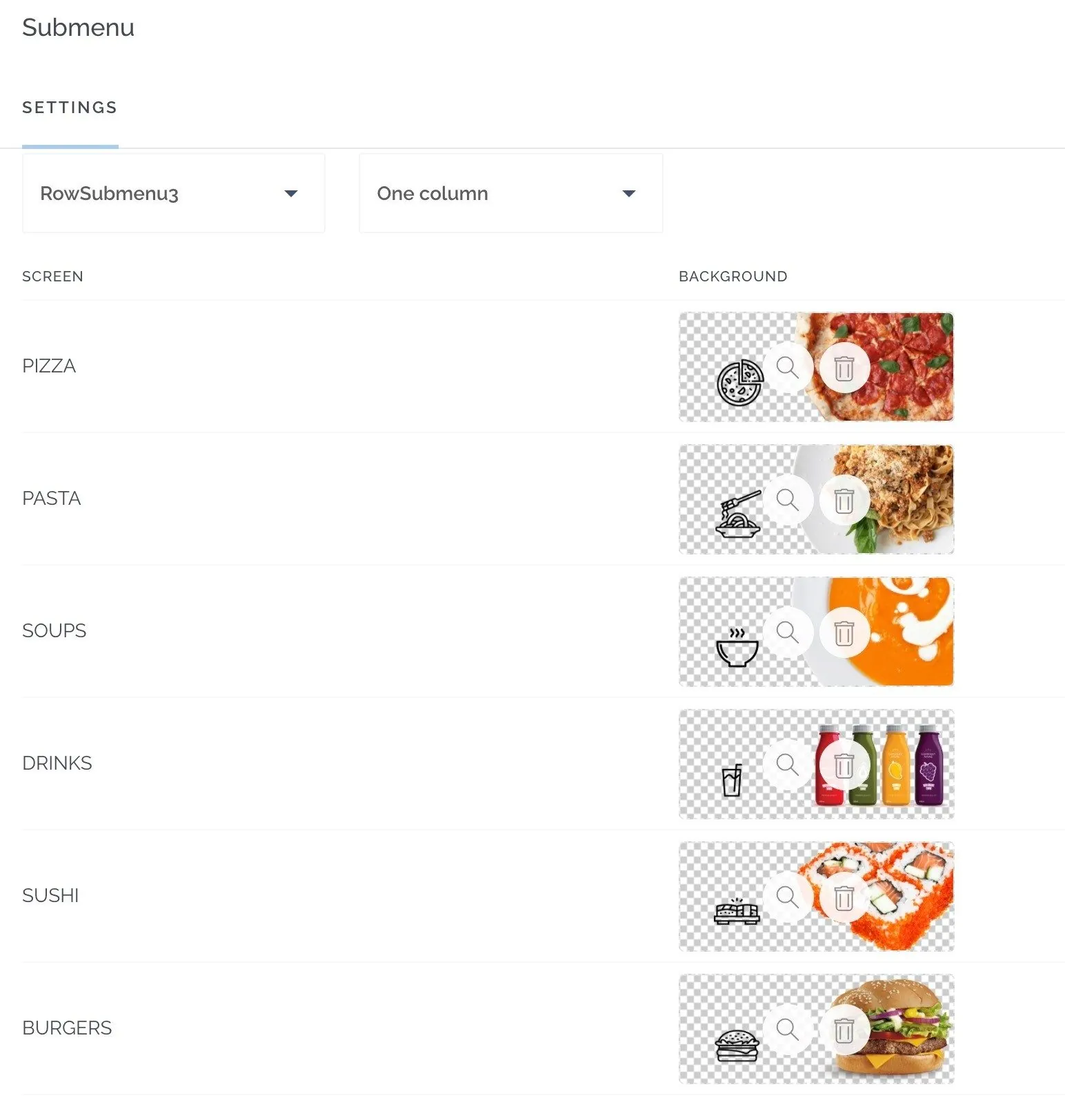
For example, a restaurant app could have an “Order now” submenu containing “Soups”, “Sushi” and “Pasta”.

Still need help?
Our team is happy to walk you through it.