Guide to publishing your app on the App Store and Google Play
An overview of everything you need to do to get your app published.
Updated November 3, 2022
You’ve built your app and you’re ready to publish. Use this article as a checklist, so our team has everything it needs to submit your app to Apple and Google.
1. Enroll in the Apple Developer Program
Apple requires every app to live in its own developer account. Enrollment costs USD 99 per year. Follow our step-by-step guide to enroll.
Choose the right account type:
- Individual: one login, and your first and last name appear as the developer on the App Store. Choose this only if the app is branded to you as a person.
- Company / Organization: multiple logins with different permissions, and your company’s name appears on the App Store. Choose this if the app is for your business or organization.
Picking the right type is vital for approval. If a well-known person builds an app about themselves, they can enroll as an individual. If they build it for their company or charity, they must enroll as that company or organization.
Non-profits, government and accredited educational institutions may be able to waive the enrollment fee. You’ll need to enroll as a Company / Organization.
Building an app for internal use only? You need an Apple Enterprise developer account instead.
Apple also requires two-factor authentication on every developer account. When you send your app to our publishing team, we’ll arrange a call with you to get the verification code, unless you’ve added us as an admin.
2. Enroll in the Google Play developer program
To be on Google Play you also need a Google developer account. It’s a one-time fee of USD 25, and there’s a single account type for both public and internal apps. See How to create a Google Play developer account.
3. Add us to your Google Play account
So our publishing team can submit your app, invite us to your Google Play Console. Follow How to link MobAppCreator to your Google Play account.
4. Fill in your publishing information
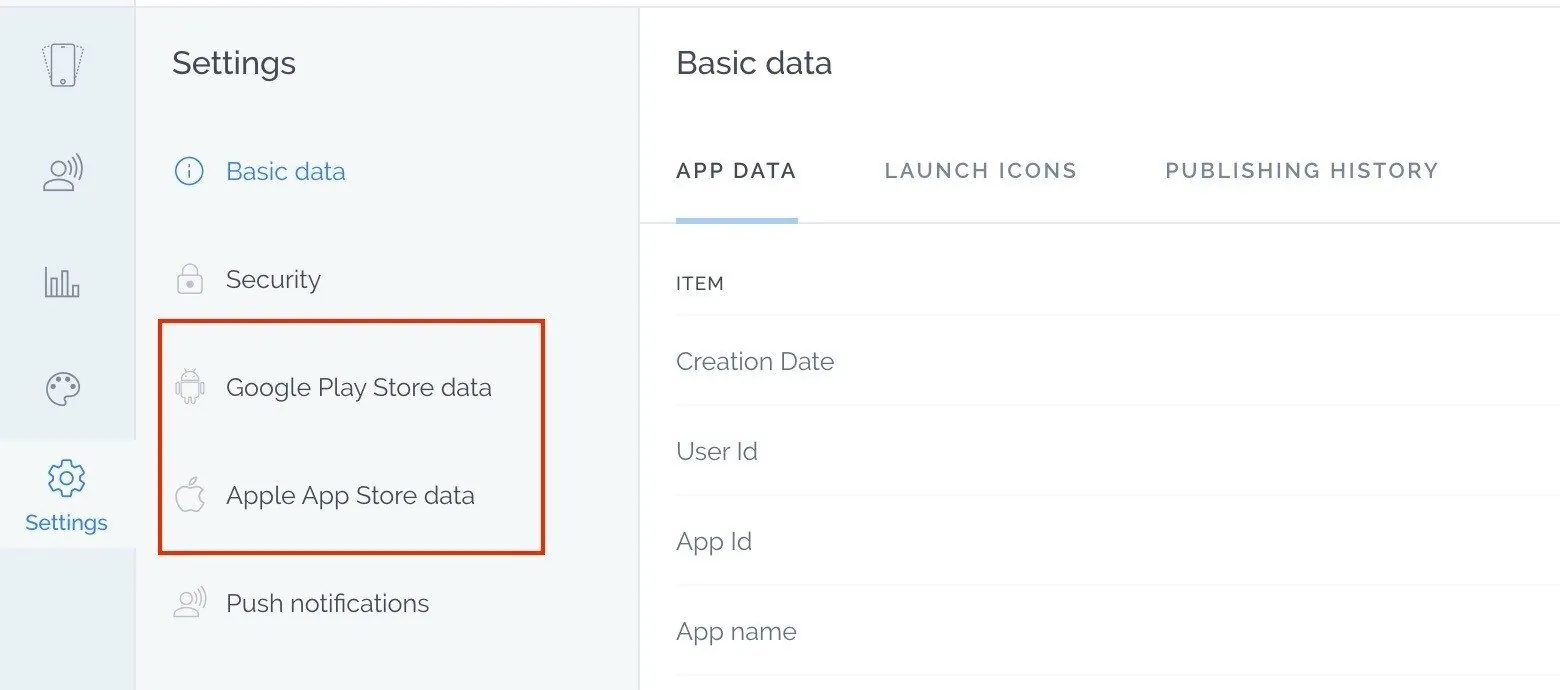
In the App Dashboard, go to Settings → Publishing Info and complete the information for each store. Then click Publish to send your app to our publishing team.
5. Allow time for review
Our team usually needs one or two business days to prepare your app for submission. After that, it goes through each store’s review. Google typically takes a few days; Apple can take anywhere from a couple of days to a couple of weeks, depending on their workload. Plan ahead if you need your app live by a certain date.
6. Watch for emails from Apple and Google
Apple and Google send updates to the email address you used for your developer accounts: when your app is in review, approved or rejected. If your app is rejected, forward the full message to info@mobappcreator.com and we’ll help you resolve it.
Still need help?
Our team is happy to walk you through it.